

Vizio TVs are popular for their high-quality picture and sound, but sometimes users may experience issues with connecting to their Wi-Fi network.
If your Vizio TV isn’t connecting to Wi-Fi, there are a few quick and easy fixes that you can try. First, check to make sure that your Wi-Fi network is working properly by connecting to it with another device.
Next, make sure that your Vizio TV is in range of your Wi-Fi network and that the Wi-Fi settings on the TV are correct. You can also try resetting your Wi-Fi router and restarting your TV. If the problem persists, check to see if there are any firmware updates available for your TV.
In this article, we’ll explore some of the most common causes of this problem and provide some solutions to help you get back to streaming your favorite shows and movies in no time. Continue reading to get detailed information about Vizio TV not connecting to wifi.
By continuing to use this website you agree to our Terms of Use. If you don't agree to our Terms, you are not allowed to continue using this website.
Reasons Your Vizio TV Isn’t Connecting to Wi-Fi


Vizio TVs are known for their high-quality picture and sound, making them a popular choice among consumers.
However, sometimes users may experience issues with connecting their Vizio TV to their Wi-Fi network. If you’re having trouble getting your Vizio TV to connect to Wi-fi, you’re not alone.
| Weak wifi signal | One of the most common causes of a Vizio TV not connecting to Wi-Fi is a weak Wi-Fi signal. If your TV is located far away from your Wi-Fi router or there are walls or other obstacles blocking the signal, the TV may not be able to connect to the network. In this case, you can try moving your TV closer to the router or eliminating obstacles that may be blocking the signal. |
| Incorrect wifi settings | Make sure that your TV is set to the correct Wi-Fi network and that the Wi-Fi settings are correct. This includes the network name (SSID) and password. Double-check that you have entered the correct information and that your Wi-Fi network is not hidden. |
| Router issues | Sometimes the problem may not be with the TV, but with the Wi-Fi router. Make sure that your router is properly configured and that it’s connected to the internet. You can try resetting your router and restarting your TV to see if this resolves the problem. |
| Interference from other devices | Another possible cause of a Vizio TV not connecting to Wi-Fi is interference from other devices. Electronic devices such as microwaves, cordless phones, and other Wi-Fi networks can interfere with your TV’s Wi-Fi signal. To eliminate this as a possible cause, try turning off other electronic devices that are located near your TV or router. |
| Firmware updates | It’s possible that there may be a problem with the TV’s firmware. Vizio occasionally releases firmware updates to fix bugs and improve performance. To check if there are any updates available, go to the “Menu” on your TV, then select “System,” and then “Check for updates.” If there’s an update available, follow the on-screen instructions to install it. |
| TV isn’t compatible | Some older Vizio TV models may not be compatible with the latest Wi-Fi standards, which can cause connection issues. If your TV is not connecting to Wi-Fi, check the model number and consult the TV’s manual or Vizio’s website to see if it supports your Wi-Fi network’s standards. |
| Network security | Some Wi-Fi networks may have a high level of security, which can prevent some devices from connecting to the network. Make sure that your Wi-Fi network is configured to allow your TV to connect. You can check the settings on your router or contact your internet service provider for assistance. |
| TV is malfunctioning | In some cases, the issue may be with the TV itself. If you’ve tried all of the above solutions and are still unable to connect your Vizio TV to Wi-Fi, it’s possible that the TV is malfunctioning. Contact Vizio customer support for further assistance. |
Troubleshoot a Vizio TV That Won’t Connect to Wi-Fi
If your Vizio TV won’t connect to wifi, there are several steps you can take to troubleshoot and fix the problem. Below are some common solutions that may help:
Check the Wi-Fi network
To check the Wi-Fi network when troubleshooting a Vizio TV that won’t connect to Wi-Fi, start by verifying that the Wi-Fi router is working properly. Connect another device, such as a smartphone or laptop, to the Wi-Fi network to ensure that it’s broadcasting and that there is internet connectivity.
Next, check the Wi-Fi settings on the Vizio TV to ensure that it’s set to the correct Wi-Fi network and that the network name (SSID) and password are correct. If the network is hidden, make sure that the TV is configured to connect to hidden networks.
If the problem persists, try restarting the router and the TV, or contact your internet service provider for assistance.


Image Credit: Reddit
Toggle the DHCP settings
To toggle the DHCP settings when troubleshooting a Vizio TV that won’t connect to Wi-Fi, start by going to the “Menu” on your TV and selecting “Network.” From there, select “Network Setup” and then “IP Settings.”
Look for the option to toggle DHCP on or off. If DHCP is off, turn it on, and if it’s on, turn it off and try connecting to the Wi-Fi network. If this doesn’t work, you can also try to change the IP address of the TV to static.
This will prevent the DHCP from assigning IP addresses automatically. Keep in mind that this method is only for advanced users who have a good understanding of network configurations.
If you are not sure what you are doing, it’s recommended to seek help from a professional.
Power Cycle the Router, Modem, and TV
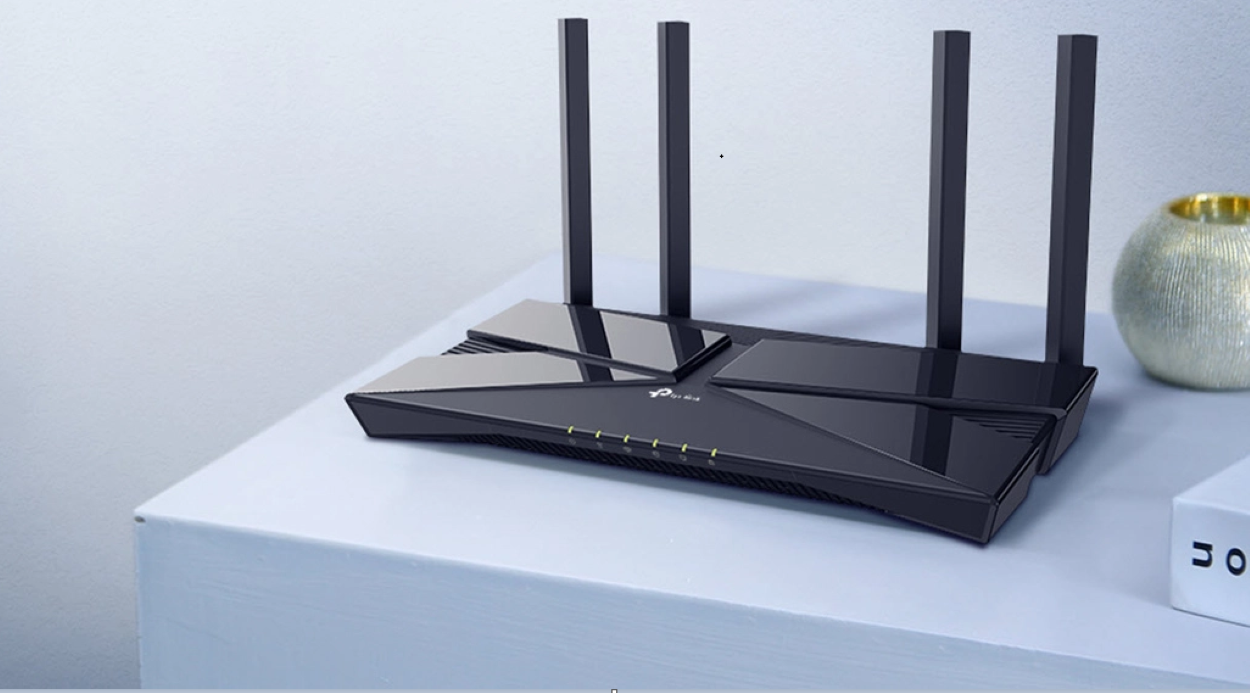
To power cycle the router, modem, and TV when troubleshooting a Vizio TV that won’t connect to Wi-Fi, start by unplugging the power cord from the router, modem, and TV.
Wait for at least 30 seconds before plugging the power cord back into the router, then the modem, and finally the TV. This process is called a power cycle and it’s known to resolve various connectivity issues.
Once all the devices are back on, try to connect the TV to the Wi-Fi network again. If the problem persists, you can try connecting the TV to the Wi-Fi network by using an ethernet cable to rule out Wi-Fi signal strength issues.
Subscription based streaming services such as Netflix, Hulu, and Amazon, commonly used via personal laptops or home desktops have begun integrating their streaming platforms into home televisions known as ‘Smart TVs.’ These TVs may seem like a great new way to access the programming we love, yet their integration comes at a cost. Many of these systems take advantage an internet connection by collecting a constant stream of user data behind the scenes.
Change the Router’s Security Settings
To change the router security settings to enable WPA-PSK [TKIP] when troubleshooting a Vizio TV that won’t connect to Wi-Fi, you’ll need to access your router’s settings. This can usually be done by typing the router’s IP address into a web browser and logging in with an admin account.
While Smart TV companies generally collect this data through legal means, these same companies increasingly blur the line between full and partial disclosure of privacy terms, which leaves users unaware of both the type of data transmitted and the insecurity of many of those transmission protocols.
Once you’re logged in, navigate to the wireless security settings and look for the option to change the security protocol. Select “WPA-PSK [TKIP]” and save the changes. This will enable the TV to connect to the Wi-Fi network.
Keep in mind that this method is only for advanced users who have a good understanding of network configurations.
Use a Wired Ethernet Connection
If your Vizio TV won’t connect to Wi-Fi, using a wired Ethernet connection can be a quick and easy solution. To do this, you’ll need an Ethernet cable and a modem or router that has an Ethernet port.
Connect one end of the cable to the Ethernet port on the modem or router and the other end to the Ethernet port on the TV. This will provide a wired connection between the TV and the internet, bypassing the Wi-Fi connection.
Make sure that the TV is set to use the wired connection, you can find this setting on your TV’s network settings. This method is useful if you suspect that the issue is with the Wi-Fi signal strength, interference, or security related.
Reset the Vizio TV


If you’ve tried all the above solutions and your Vizio TV still won’t connect to Wi-Fi, you may need to reset the TV. A factory reset will erase all the settings on the TV and restore it to its original state. To reset the TV, go to the “Menu” on your TV, select “System,” and then “Reset & Admin.”
From there, select “Reset TV to Factory Defaults” and follow the on-screen instructions. This will erase all the settings on the TV, including the Wi-Fi settings, so make sure to have your Wi-Fi network name and password handy.
After the reset, you will need to set up the TV again, including connecting to a Wi-Fi network. This method is useful when the problem is caused by incorrect settings or outdated firmware.
Contact Vizio Customer Support
If you’ve tried all of the above solutions and your Vizio TV still won’t connect to Wi-Fi, it may be necessary to contact Vizio customer support for further assistance. The customer support team will be able to provide you with more information on the issue and guide you through troubleshooting steps.
They may also be able to assist you with any software updates or fixes that are specific to your TV model. You can contact Vizio customer support through their website, by email, or by phone. Make sure to have your TV model number and serial number ready when you contact them.
They may ask for more details about the problem you are experiencing and the steps you have taken so far to troubleshoot.
FAQs
How Do I Fix My Vizio TV When it Won’t Connect to the WiFi?
If your Vizio TV won’t connect to the Wi-Fi, there are several things you can try:
- Check your Wi-Fi signal and settings.
- Restart your router and TV
- Update the firmware on your TV
- Contact Vizio customer support for assistance
How Can I Manually Set Up Wi-Fi on My Vizio TV?
To manually connect your Vizio TV to Wi-Fi, follow these steps:
- On your TV remote, press the Menu button and navigate to the Network settings.
- Select “Network Setup” and then “Manual Setup.”
- Select the Wi-Fi option and then select “Scan” to search for available Wi-Fi networks.
- When asked, choose your Wi-Fi network from the list and input the password.
- Press “Apply” to save the changes and connect to the wifi network.
Why Is My Smart TV Suddenly Not Connecting to WiFi?
There can be several reasons why a smart TV might suddenly stop connecting to Wi-Fi, some common causes include:
- Weak Wi-Fi signal
- Incorrect wifi settings
- Router issues
- Interference from other devices
Conclusion
- If your Vizio TV won’t connect to Wi-Fi, it can be frustrating, but there are several solutions you can try to troubleshoot and fix the problem.
- The problem may include weak Wi-Fi signals, incorrect Wi-Fi settings, router issues, and interference from other electronic devices.
- To fix the problem, you can try moving your TV closer to the router, verifying your Wi-Fi settings, restarting your router and TV, checking for firmware updates, and checking for interference.
- If the problem persists, you can try using a wired Ethernet connection, resetting the TV to factory defaults, or contacting Vizio customer support for further assistance.
- Remember that some solutions may vary depending on the specific model of Vizio TV and the Wi-Fi network you’re trying to connect to, so be sure to check your TV manual or Vizio’s website for more information.