
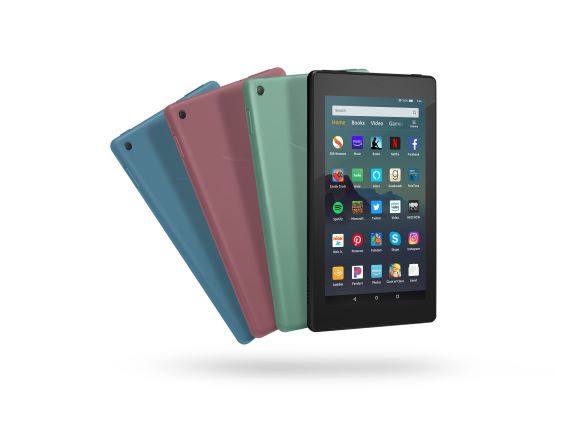
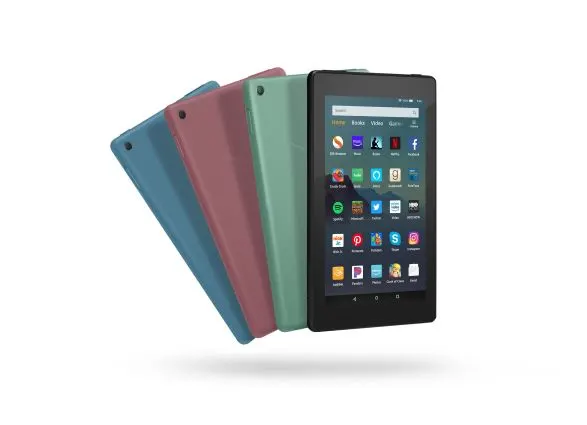
You can now use your Amazon Fire Tablet as a mini dashboard efficiently. It works perfectly like how an iPad can be used as your HomeKit dashboard for Apple smart devices.
You can also use your Android OS 11 device as a mini-dashboard for your Assistant-enabled products. It’s taken Amazon some time to get here, but nevertheless, Amazon now provides smart home users a way to manage their smart devices with ease.
The dashboard feature is available in the navigation bar of the Fire Tablets with FOS 7 & higher. You can also access the Dashboard via the Lock Screen of the Fire Tablet.
Keep reading for more interesting info!
By continuing to use this website you agree to our Terms of Use. If you don't agree to our Terms, you are not allowed to continue using this website.
What is the Alexa Smart Home dashboard?
The Smart Home Dashboard which is commonly known as Alexa Smart Home App enables you to connect all your smart home devices and control them using a Fire Tablet
What are the things you can control? Because you can use it in controlling your smart devices, you can easily do voice interaction, listing, set up alarms, music playback, listen to podcasts and audiobooks, and even real-time information for weather updates and news.


How do I enable the dashboard on my Fire tablet?
You can turn your Amazon Fire tablet into an amazing smart home hub through the Device Dashboard feature.
The Device Dashboard can essentially turn an Amazon Fire table into a smart hub with just a tap. This feature debuted back in 2020 for selected Fire tablets before it became Smart Dashboard in some Fire TVs.
Before starting, make sure your Fire tablet is signed into the same Alexa account. Here’s how to enable the dashboard on your Fire tablet:
- Open Settings on your Fire tablet.
- Scroll down and tap Security and Privacy.
- Tap Device Dashboard.
- Tap the toggle next to Access Device Dashboard.
Does Google have a dashboard app?
Yes, Google has a dashboard app. In fact, you can create and customize the dashboard yourself.
Here are the steps to follow:
- Sign in to Google Analytics.
- Go to your view.
- Open Reports.
- Click Customization > Dashboards.
- Click Create.
- Select either Black Canvas or Starter Dashboard in the Create Dashboard dialog.
- Create a descriptive title for your Dashboard, then click Create Dashboard.
If you’re asking about widgets, the answer is yes. You can add widgets to your dashboard as a metric, timeline, map, table, pie, and bar. You can also modify an existing widget.
Can you use a tablet as a smart home control?


You can use a tablet as a smart home control. You can use any tablet, but it’s best to choose something with a smaller bezel and wireless charging.
I’d say a Qi-compatible tablet is also one of the best options because you can easily mount the Qi charger on the wall and the tablet in front of it. You don’t have to use a powerful smart home tablet, as you only need to run one app or website at a time.
But if you want to stick with Amazon Fire Tablet, the smart home devices you should have must be compatible with the Device Dashboard and Amazon Alexa, whether it’s switches, thermostats, lights, cameras and sensors.
If you want to know 10 Different Smart Home Sensors (All Info!), just click this link.
That said, the Amazon Fire tablet is a great option! Be sure to buy the version with lock-screen ads and anti-glare screen protection.
This Amazon HD Fire tablet is also a great option. Watch the video below!
On the other hand, here are other devices you can use as a Smart Home Control.
- Google Nest Hub Max
- Google Nest Hub
- Amazon Echo Show 5 (2nd Gen)
- Amazon Echo Show 5
Final Say
Now you can use your Amazon Fire Tablet as a smart home control dashboard. It’s pretty easy, and you can activate the dashboard app in a few finishes. Here’s the summary of the steps you should take note of in setting up your Fire Tablet.
| How to Enable the Dashboard on Fire Tablet | How to Create and Customize the Dashboard |
| Open Settings on your Fire tablet. Scroll down and tap Security and Privacy. Tap Device Dashboard. Tap the toggle next to Access Device Dashboard. | Sign in to Google Analytics. Select view Select Reports Select Customization > Dashboards Select Create. Select either Black Canvas or Starter Dashboard Create a descriptive title for your Dashboard Click Create Dashboard. |
 Skip to content