
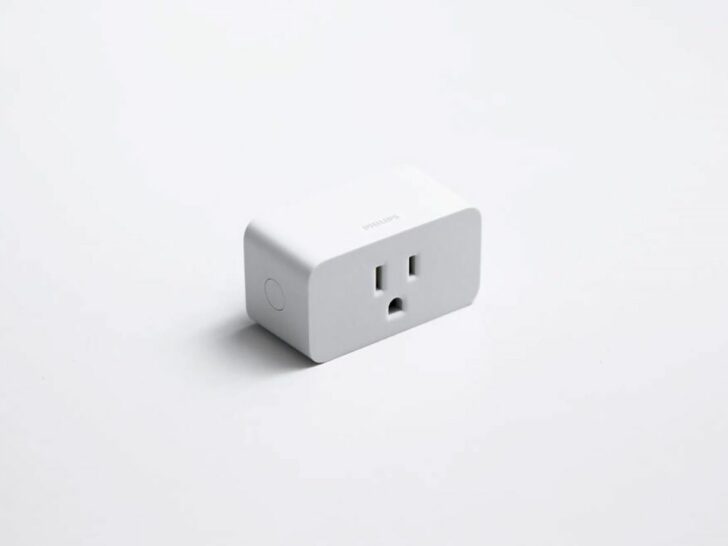
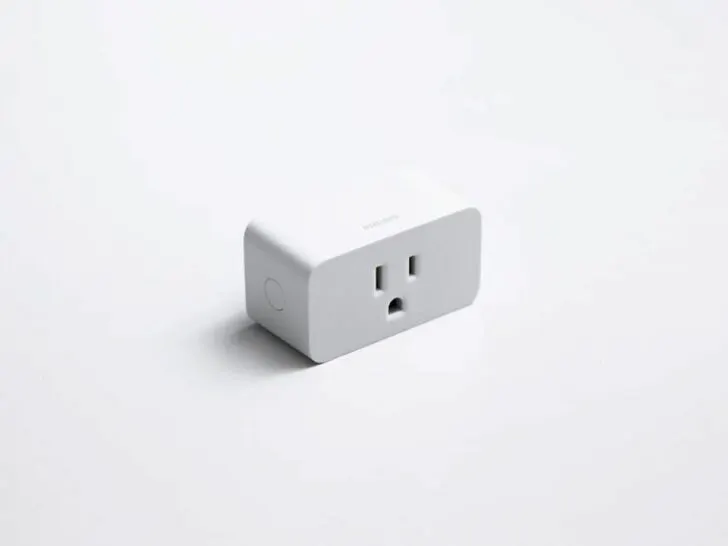
While you may not think too much of it, smart plugs are definitely the unsung heroes of a smart home. One great example is the TP-Link Kasa Smart Plug, which has easily found itself in many homes.
The Kasa smart plug is a good plug to start with when you’re new to smart setups. Besides, it comes highly recommended by Amazon products like the Echo Dot as the best smart plug to use.
However, because you might not be familiar with this item, it’s not unusual if you experience problems such as intermittent WiFi connectivity.
To solve the connection problem you can reset the plug by taking it out of the socket, letting it sit for 10 seconds, and then putting it back in.
If you’re experiencing connectivity issues with your Kasa smart plug, keep on reading as we will provide you with tried-and-tested ways you can resolve them.
By continuing to use this website you agree to our Terms of Use. If you don't agree to our Terms, you are not allowed to continue using this website.
Troubleshooting The Kasa Smart Plug
Here are some troubleshooting steps you can take to resolve your Kasa smart plug’s connection problems:
- Reset the plug by taking it out of the socket.
- Let it sit for 10 seconds.
- Put the plug back in.
After doing this, the plug should be able to work normally. You can also try connecting the plug through your phone’s WiFi settings if the method above didn’t work.
If you’ve already done these two things and your TP-Link Kasa Smart Plug still has connectivity problems, we still have a few more troubleshooting options for you to try.
Set Up the Kasa Smart Plug Before Use
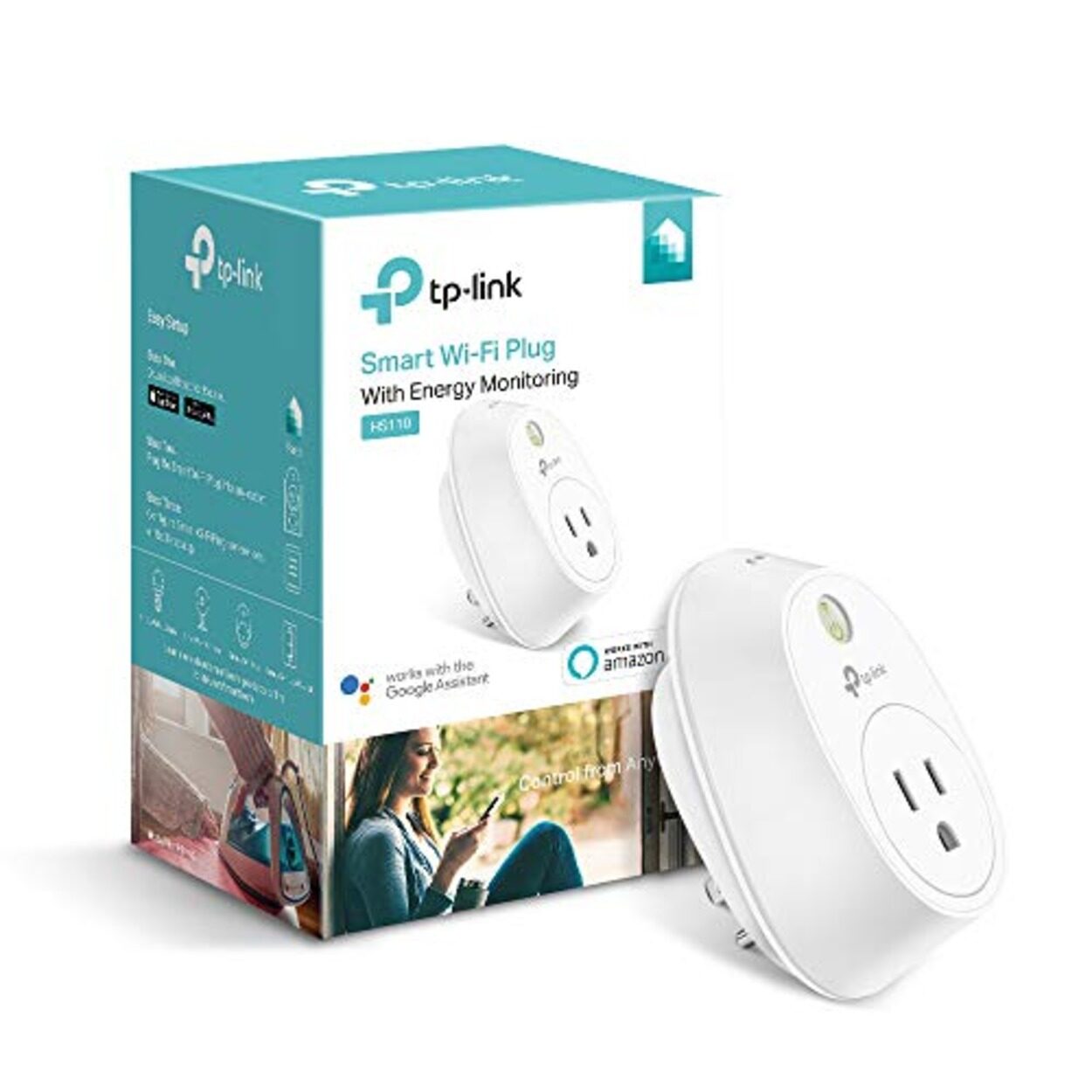
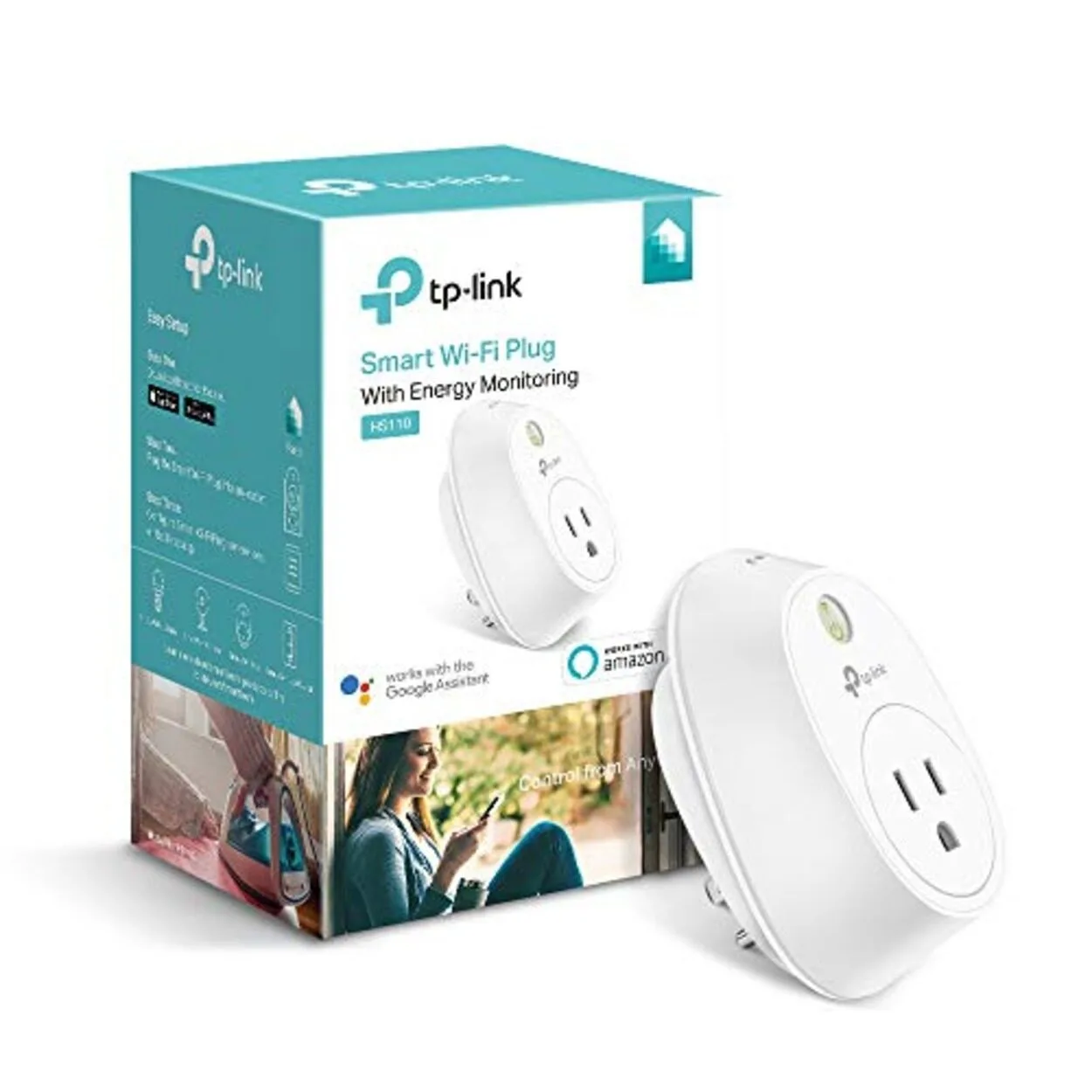
To set up the TP-Link Kasa Smart Plug correctly, you’ll need to do all of the things listed in the next few paragraphs:
- Download and install the Kasa Smart app on your smartphone or tablet. If you haven’t already, create a Kasa account.
- Plug the Kasa Smart Plug into an electrical outlet and turn it on.
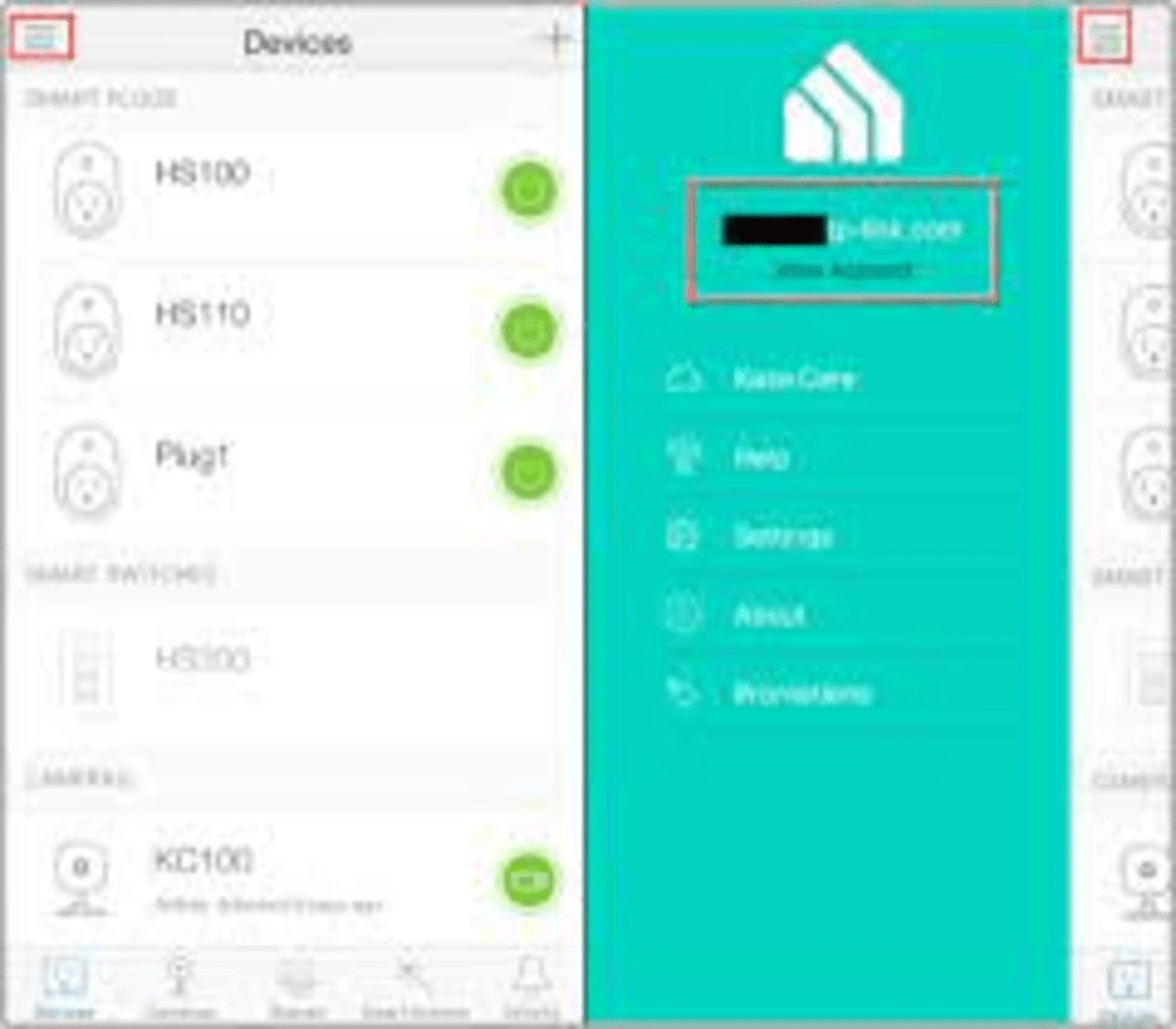
- Open the Kasa Smart app and select the “+” icon to add a new device.
- Choose “Smart Plug” as the device type.
- Connect your phone or tablet to the WiFi network that you want the Kasa Smart Plug to be connected to.
- Press and hold the “Reset” button on the side of the Kasa Smart Plug for 5 seconds until the LED light flashes rapidly.
- Connect your phone or tablet to the Kasa Smart Plug’s WiFi network and enter your WiFi network password to connect the Kasa Smart Plug to your home WiFi network.
- Name the Kasa Smart Plug something recognizable.
- Test the Kasa Smart Plug by using the app to turn it on and off.
- After completing these steps, you can use the Kasa Smart app to control the Kasa Smart Plug remotely, set schedules and timers, and turn it on and off as needed.
Using the mobile app, you can connect your smart plug to the home local area network that you’ve chosen for your home.
It’s highly recommended that you give the smart plug you bought a name (to make it easier to remember, you can name it after the device to which the smart plug is going to be connected).
As soon as your Google Home or Amazon Alexa-enabled smart device finds your TP-Link Kasa Smart Plug, it’ll be ready to connect to it. You can contact the TP-Link support team if you have any questions about how to set up your TP-Link Kasa Smart Plug.

Other Problems That Keep Coming Up (And How to Fix Them)
Even though completing the steps listed above isn’t too hard, there are still a few things that could go wrong along the way. Here are some common problems and how to fix them:
| Problem | Fix |
| The smart plug isn’t recognized by Alexa. | Unplug and re-plug the smart plug to re-discover it in your Alexa app. Alternatively, see if the device is Kasa App compatible. |
| Alexa reports that the smart plug is unavailable. | Unplug and reconnect the device—the wireless connection may have been lost at some point during the day. |
| The device didn’t properly boot up. | Try unplugging and replugging the device. |
| The device is unable to connect to smart devices. | Go to your smartphone’s settings and manually connect it to the smart plug. During the setup process, turn off any VPN connections that your phone may be using. Unplug and replug the plug, then repeat the preceding steps. |
| The smart device cannot be renamed. | Reconnect to the WiFi network of the smart plug and try again. Otherwise, you should uninstall and reinstall the Kasa Smart app on your phone. |
| The device is unable to connect to your network. | If the wireless signal is less than two bars, you’ll need to move the plug closer to your router. Also, make sure that the WiFi you’re attempting to connect the device to has a 2.4 GHz bandwidth. |
| You cannot select “Done” when configuring the plug in the Kasa Smart app/The device indicates “Almost done” but never completes. | Wait 15 seconds, then check the smart plug’s light. If the smart plug indicates that it’s connected to the network or if the light blinks repeatedly, do not choose to restart. |
FAQs
What Could Possibly Be Preventing My Kasa Smart Plug from Connecting?
There can be several causes of connectivity issues with your plug, ranging from problems with the router settings to issues with the plug itself. Below are some of the reasons why your plug may fail to connect:
- Using a 5 GHz network instead of the compatible 2.4 GHz frequency.
- The plug is out of range of your network.
- Router settings that prevent the addition of new devices.
- Poor network signal, which may not be sufficient to add your device.
- The presence of an active VPN or AdGuard on your mobile device.
- Failure to grant the Kasa app the necessary permission to access your Local network.
- The plug is not in pairing mode, which means that you cannot find its hotspot to connect to.
- An outdated Kasa app.
Why Can’t I Connect My Kasa to the WiFi Network?
Again configure the smart device after changing the wireless channel on the router to either 1 or 6, and increasing the channel width to 20 MHz.
If you are still unable to connect to the WiFi network, you might want to try turning off the 5G on the WiFi router you are using to see if it helps.
How Can I Repair an Unresponsive Smart Plug?
If your smart plug is not responding, there are several things you can do to try and fix it. First, check if it is properly connected to the power source. If it is, try resetting it by unplugging it for a few seconds and then plugging it back in.
Make sure the app is set up correctly and the firmware is up to date. If none of these work, you can contact the manufacturer’s customer support for further help in troubleshooting the issue.
How Do I Get Online Access Restored to My Kasa Account?
If you’re having trouble accessing your Kasa account online, there are several things you can do to restore access.
These include checking your internet connection, attempting to log in again, resetting your password if necessary, uninstalling and reinstalling the Kasa app, and contacting TP-Link customer support for additional assistance.
Conclusion
- If you’re experiencing connectivity issues with your Kasa smart plug, try resetting it by taking it out of the socket, letting it sit for 10 seconds, and then putting it back in.
- Your home’s level of intelligence can be vastly improved by installing a TP-Link; but, you should be prepared for some challenges along the road.
- To solve the connection problem you can reset the plug by taking it out of the socket, letting it sit for 10 seconds, and then putting it back in.
- If you’re having trouble connecting it to your phone, make sure you connect to it through your phone’s WiFi settings before trying anything else. After that, you should try connecting it to your phone.
- You should be able to maintain your smart plugs free of some of the frequent issues that appear from time to time if you use these troubleshooting methods