
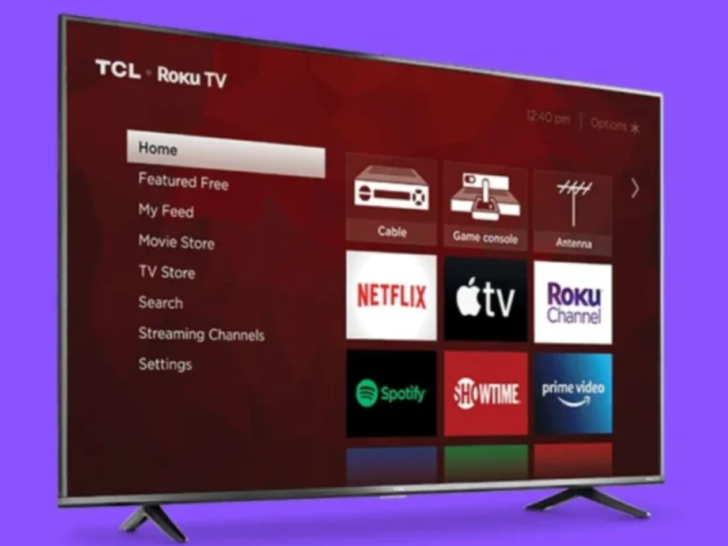

TCL is a Chinese electronics company that has been in the TV industry since 1981. Over the years, the company has built a strong reputation for producing high-quality TVs that are both affordable and feature-rich.
TCL offers a range of TV models, including LED, QLED, and 4K UHD TVs, with screen sizes ranging from 32 inches to 75 inches. TCL TVs are known for their excellent picture quality, smart features, and user-friendly interface.
TCL produced a “powerful receiver” coloure TV in Vietnam. In these regions, TCL’s TV
provided much clearer reception than other brands.
Picture in Picture is a popular TV feature that enables viewers to watch two programs simultaneously on the same screen.
This feature has become increasingly popular in recent years, as viewers often want to watch multiple programs at the same time, especially during sports events or news broadcasts.
In this article, we’ll explore the PIP feature in TCL TVs, its benefits, and how to use it. We’ll also suggest some alternatives to TCL TV PIP to help you make an informed decision when buying a TV with the PIP feature. So, let’s dive in!
By continuing to use this website you agree to our Terms of Use. If you don't agree to our Terms, you are not allowed to continue using this website.
Picture in Picture
Picture in Picture is a TV feature that allows viewers to watch two programs simultaneously on the same screen.
The primary program is displayed in full-screen mode, while the second program is displayed in a smaller window within the primary program.
This feature is especially useful for sports fans who want to keep an eye on multiple games at the same time or for people who want to watch the news while also catching up on their favorite TV show.


Image Credit: Reddit
PIP is a feature that has been around for many years and is now available on most modern TVs, including TCL TVs.
PIP mode is a great option for multitasking. You can watch TV while browsing the internet or working on a project, making it ideal for busy individuals.
Some of the TCL TV models with a PIP feature are as under:
| TCL TV Model | PIP Availability |
| TCL 32S305 | Yes |
| TCL 40S305 | Yes |
| TCL 43S305 | Yes |
TCL TV PIP Features
The PIP feature is available on most TCL TV models and can be accessed through the TV’s settings menu.
Whether you’re looking to multitask while watching TV or want to record one program while watching another, TCL’s PIP mode offers a variety of features to enhance your viewing experience.
| Feature | Description |
|---|---|
| Dual Viewing | Watch two different programs simultaneously on one screen |
| Setup | Simple setup process, easily turn on feature from TV menu or remote control |
| Size and Position | Adjust the size and position of the secondary screen to your preference |
| Viewing Options | Switch between primary and secondary screens, or view both screens simultaneously |
| Compatibility | Compatible with various inputs including HDMI, USB, and other multimedia sources |
| Multitasking | Ideal for multitasking, allows you to watch TV while browsing the internet or working on a project |
| Customizable Audio | Adjust the volume and audio output for each program separately |
| Parental Controls | Set limits on the content your children can access in PIP mode |
| Recording Capabilities | Record one program while watching another in PIP mode |
| Multi-Window Support | View up to four different programs at once with TCL’s Multi-Window feature |
| Video Source Switching | Quickly switch the video source between primary and secondary screens |
| Remote Control Customization | Customize your remote control to easily switch between PIP mode and other features |
TCL’s PIP mode is a versatile and user-friendly feature that provides a seamless viewing experience for those who enjoy multitasking or want to keep up with multiple programs simultaneously.

How to Use PIP on TCL TV?
Using the PIP feature on your TCL TV is a great way to enjoy two shows together at one and the same time. Here’s a step-by-step guide on how to use PIP on TCL TV:
- Press the “Menu” button on your TCL TV remote.
- Select “Settings” from the menu.
- Scroll down and select “Picture.”
- Scroll down and select “Picture in Picture.”
- Choose between traditional PIP or split-screen mode, depending on your preference.
- Select the program you want to watch in the smaller window (if you’re in traditional PIP mode).
- Use the directional buttons on your remote to adjust the position and size of the smaller window (if you’re in traditional PIP mode).
- Use the “Swap Audio” button on your remote to switch the audio source between the primary and secondary programs.
- To exit PIP mode, press the “PIP” button on your remote or select “Off” in the PIP settings menu.
It’s important to note that not all TCL TV models support PIP mode, so be sure to check your TV’s specifications before attempting to set it up.
Tips for Using PIP on TCL TV
Here are some tips for using PIP on your TCL TV:
- Use the PIP feature for sports events to watch multiple games at the same time.
- Adjust the position and size of the smaller window to suit your preferences and viewing comfort.
- Use the “Swap Audio” button to switch between the primary and secondary programs’ audio sources.
- Be aware that using PIP mode may affect the overall picture quality of your TCL TV.
Pros & Cons of TCL PIP Mode
Pros:
- Dual Viewing: PIP mode allows you to watch two different programs at the same time on a single screen.
- Multitasking: PIP mode is ideal for multitasking, allowing you to watch TV while browsing the internet or working on a project.
- Customizable: You can adjust the size and position of the secondary screen, as well as the volume and audio output for each program separately.
- Compatibility: PIP mode is compatible with various inputs including HDMI, USB, and other multimedia sources.
- Additional Features: TCL’s PIP mode offers additional features such as recording capabilities, multi-window support, and parental controls.
Cons:
- Limited Screen Space: Since the secondary screen is smaller, it may be difficult to view the details of both programs simultaneously.
- Reduced Picture Quality: Viewing two programs at once can reduce the picture quality of each program, particularly if they are not of equal size.
- Limited Viewing Options: Some TCL TV models only allow you to view the secondary source in a small window, limiting your viewing options.
Alternatives to TCL TV PIP
While TCL TVs offer a robust PIP feature, there are alternative ways to achieve a similar effect if your TCL TV doesn’t have this feature or if you want more flexibility.
Here are some alternatives to TCL TV PIP:
- Picture-by-Picture (PBP) mode: This feature is available on some high-end monitors and allows you to display two sources side-by-side on the same screen. This is a great option if you’re using your TV as a monitor for your computer or if you have multiple devices connected to your TV.
- Multitasking apps: Many modern streaming devices, such as Roku and Fire TV, have multitasking apps that allow you to split the screen and watch two programs at the same time. This is a great option if you’re using a streaming device with your TCL TV.
- Picture-in-Picture apps: There are several third-party apps available that allow you to watch two programs at the same time on your TV. These apps work by splitting the screen into two windows and displaying the two programs simultaneously.
- Dual monitor setup: If you have a spare monitor lying around, you can connect it to your TCL TV and use it as a secondary display. This is a great option if you want to watch two programs simultaneously and have the flexibility to move each program to a different screen.
TCL PIP comparison with other brands
| Brand | Model | PIP Feature | Additional Features | Screen Size | Resolution |
|---|---|---|---|---|---|
| Samsung | QN90A | Yes | Multi-View for up to two screens, adjustable screen sizes, and soundbar compatibility | 55 inches and up | 4K |
| LG | CX Series | Yes | Screen share, adjustable screen sizes, and built-in virtual assistant | 55 inches and up | 4K |
| Sony | X90J | Yes | Dual-Screen mode, adjustable screen sizes, and voice control | 55 inches and up | 4K |
| Vizio | P-Series Quantum X | Yes | WatchFree+ service, adjustable screen sizes, and built-in Chromecast | 65 inches and up | 4K |
| Hisense | H9G | Yes | Auto Low Latency Mode, adjustable screen sizes, and Google Assistant | 55 inches and up | 4K |
FAQs
Does TCL TV’s PIP mode work with streaming services?
TCL TV’s PIP mode may work with certain streaming services, depending on the TV model and the service’s compatibility with the TV’s input ports. However, not all streaming services may be compatible with PIP mode.
How many different PIP configurations are available on TCL TV?
The number of PIP configurations available on TCL TV depends on the TV model and the software version. Some models may offer multiple PIP configurations, while others may only have one.
Does TCL TV’s PIP mode support 4K resolution?
Yes, some TCL TV models may support 4K resolution in PIP mode. However, the resolution may vary depending on the size and configuration of the primary and secondary screens.
Conclusion
- TCL TVs are a great option for those looking for a high-quality TV with PIP features. With its intuitive user interface and easy-to-use remote, using PIP on your TCL TV is a breeze.
- Whether you want to watch multiple sports games at the same time or keep an eye on the news while watching your favorite show, TCL TV PIP has you covered.
- However, if your TCL TV doesn’t have PIP or if you’re looking for more flexibility, there are alternative ways to watch two programs at the same time.
- From picture-by-picture mode on high-end monitors to third-party apps and dual monitor setups, there are plenty of options to choose from.
- Ultimately, whether you’re using TCL TV PIP or one of these alternative methods, the ability to watch two programs simultaneously is a great way to optimize your viewing experience.
- We hope this guide has helped you understand the PIP features of TCL TVs and provided you with some alternative options to consider.
- So go ahead, try out PIP on your TCL TV, or experiment with one of these alternatives and enjoy your favorite programs like never before!