
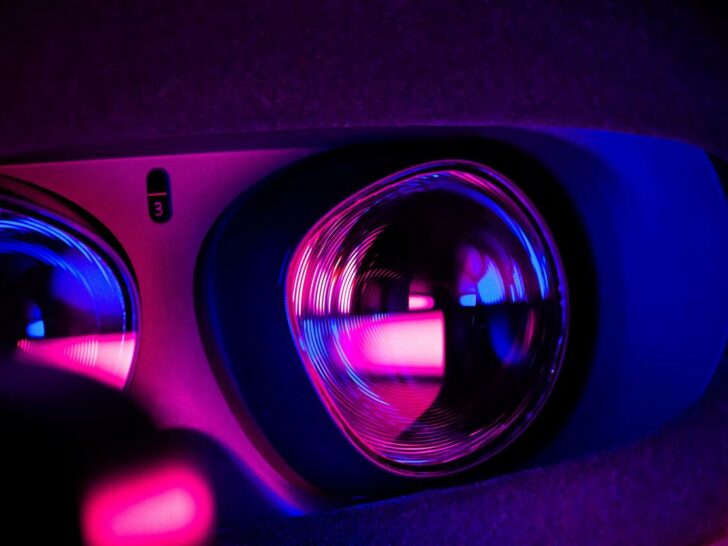

For fans of Oculus, the excitement of exploring virtual worlds frequently coexists with sporadic technical difficulties. The Oculus headset that is obstinately stuck on the Meta logo screen is one such obstacle that may lessen the immersive experience.
Try a hard reboot or a cold boot. If that doesn’t work, consider a factory reset (remember to back up your data first!). Ensure it’s charged and check for software updates. Still stuck? Unplug it for a while or try a different cable.
If you’re struggling with this problem, don’t worry; in this brief article, we’ll look at the underlying reasons and provide you with workable fixes to get out of the Meta logo limbo.
This post is your go-to guide for quickly fixing the issue and continuing your exploration of the fascinating world of virtual reality, regardless of experience level. Come with me as we solve the puzzles and get your Oculus back on track.
| How to prevent this from happening? | Explanation |
|---|---|
| Keep the Device Updated | Keeping the Oculus device updated with the latest software is essential to ensure that it runs smoothly. Therefore, it is recommended that users regularly check for updates and install them as soon as they are available. This will not only help to prevent the issue of the device getting stuck on the Meta logo screen but also ensure that the device is running optimally. |
| Charge the Battery | A low battery can also cause the Oculus device to get stuck on the Meta logo screen. To prevent this, users should ensure that the device is fully charged before using it. It is also recommended that users use the original charging cable and adapter to charge the device. |
| Avoid Overheating | Overheating is a common cause of the Oculus headset getting stuck on the Meta logo screen. Therefore, it is important to avoid exposing the device to extreme temperatures. Users should also ensure that the device is properly ventilated and not covered by any objects when in use. |
| Handle the Hardware with Care | Hardware issues, such as loose cables or damaged ports, can also cause the Oculus device to get stuck on the Meta logo screen. Therefore, users should handle the device and its accessories with care to prevent any damage. It is also recommended that users periodically check the cables and ports for any signs of damage or wear and tear. |
Facebook and Micosoft both believe that metaverse is an age where VR and other XR technologies becomes part of human daily life, where real and digital world become much closer together, where work and free time have limitless possibilities.
By continuing to use this website you agree to our Terms of Use. If you don't agree to our Terms, you are not allowed to continue using this website.
Causes of Oculus Stuck on Meta Logo
Several reasons can cause the Oculus headset to get stuck on the Meta logo screen. Here are some of the most common causes:
Software Updates
Oculus software updates are essential to keep the device running smoothly. However, sometimes these updates can cause problems, and one of the issues that users may encounter is the Meta logo screen.
The problem usually arises when the update is incomplete or corrupted, resulting in the Oculus device getting stuck on the Meta logo screen.


Overheating
Another reason why the Oculus headset may get stuck on the Meta logo screen is overheating. When the device overheats, it can shut down or fail to boot up properly, resulting in the Meta logo screen.
Low Battery
If the Oculus headset battery is low, it may not have enough power to boot up fully. This can result in the device getting stuck on the Meta logo screen.
Hardware Issues
Sometimes, the problem may not be with the software, but rather with the hardware. For instance, a loose cable or damaged port can prevent the Oculus device from booting up correctly, resulting in the Meta logo screen.
Fixes for Oculus Stuck on Meta Logo
If you encounter the problem of the Oculus headset being stuck on the Meta logo screen, there are several fixes that you can try. Some of the most successful ones are listed below:
Restart the Device
The first thing you should try is to restart the Oculus device. This may help to clear any temporary issues that may be causing the device to get stuck on the Meta logo screen.
To restart the device, you can press and hold the power button until it turns off. To restart it, press and hold the power button once more.
Reboot the Software
If restarting the device does not work, you can try rebooting the Oculus software. To do this, you need to close the Oculus app and then restart it. The software could also work after being uninstalled and reinstalled.
Clear the Cache
Clearing the cache can also help resolve the issue of the Oculus headset being stuck on the Meta logo screen.
To clear the cache, go to the Oculus app settings and select the “Devices” option. Then, click on the Oculus headset and select “More Settings.” From there, you can click on the “Clear Cache” option.
Update the Software
Updating the Oculus software may also help to resolve the issue. To update the software, go to the Oculus app settings and select the “Devices” option.
Then, click on the Oculus headset and select “More Settings.” From there, you can check for updates and install them.


Check the Cables and Ports
If none of the above fixes work, you should check the cables and ports. Make sure that all cables are securely connected and that there is no damage.
If you find any issues, you may need to replace the cables or ports.


Image Credit : Reddit
Prevention Tips for Oculus Stuck on Meta Logo
To prevent the problem of the Oculus headset being stuck on the Meta logo screen, there are several things you can do. You can avoid this problem by following these suggestions:
Keep the Device Updated
Keeping the Oculus device updated with the latest software is essential to ensure that it runs smoothly.
Therefore, it is recommended that users regularly check for updates and install them as soon as they are available.
This will not only help to prevent the issue of the device getting stuck on the Meta logo screen but also ensure that the device is running optimally.
Avoid Overheating
Overheating is a common cause of the Oculus headset getting stuck on the Meta logo screen. Therefore, it is important to avoid exposing the device to extreme temperatures.
Users should also ensure that the device is properly ventilated and not covered by any objects when in use.
Charge the Battery
A low battery can also cause the Oculus device to get stuck on the Meta logo screen. To prevent this, users should ensure that the device is fully charged before using it.
It is also recommended that users use the original charging cable and adapter to charge the device.
Handle the Hardware with Care
Hardware issues, such as loose cables or damaged ports, can also cause the Oculus device to get stuck on the Meta logo screen.
Therefore, users should handle the device and its accessories with care to prevent any damage.
It is also recommended that users periodically check the cables and ports for any signs of damage or wear and tear.
Restart the Device Regularly
Restarting the Oculus device regularly can help to prevent temporary issues that may cause it to get stuck on the Meta logo screen.
Therefore, users should restart the device at least once a week or after installing any updates.
Frequently Asked Questions (FAQs)
Q: How do I clear the cache on my Oculus device?
Ans: To clear the cache on your Oculus device, go to the settings menu and select “Device.” Then, select “Storage” and choose “Clear Data” to clear the cache.
Q: How do I update the software on my Oculus device?
Here’s how to stay current with your Oculus software:
Automatic Updates:
- Enable automatic updates: When connected to Wi-Fi and turned on, your Oculus device is meant to update itself.
- Keep it charged and connected: Make sure your smartphone is charged and connected to Wi-Fi to guarantee a smooth upgrade.
- Allow it to be undisturbed: For a while, place it on a flat surface without moving or obscuring the sensor to allow for updates.
Manual Updates:
Keep an eye out for updates:
- Wear your headset and hit the Oculus button on the right controller.
- Hover your mouse above the clock symbol, then choose “Quick Settings,” then “Settings.”
- Navigate to “System” and then to “Software Update.”
- If an update is available, you will see a download option.
Install updates:
- Tap “Download” or “Install” and then follow the on-screen prompts.
- Maintain your headset’s Wi-Fi and power connections until the upgrade is complete.
Additional Tips:
Utilize the Oculus app: You may also check for updates on your phone by using the Oculus app:
- Open the app and navigate to “Settings.”
- Choose your Oculus device and check for updates under “More Settings.”
Update the Oculus PC app: If you utilize Quest Link, you should also update the Oculus PC app:
- Launch the app on your computer, navigate to “Library,” and then click “Updates.”
Q: How can I prevent my Oculus device from getting stuck on the Meta logo screen?
Ans: To prevent this issue, you can keep the device updated, avoid overheating, charge the battery, handle the hardware with care, and restart the device regularly.
Conclusion
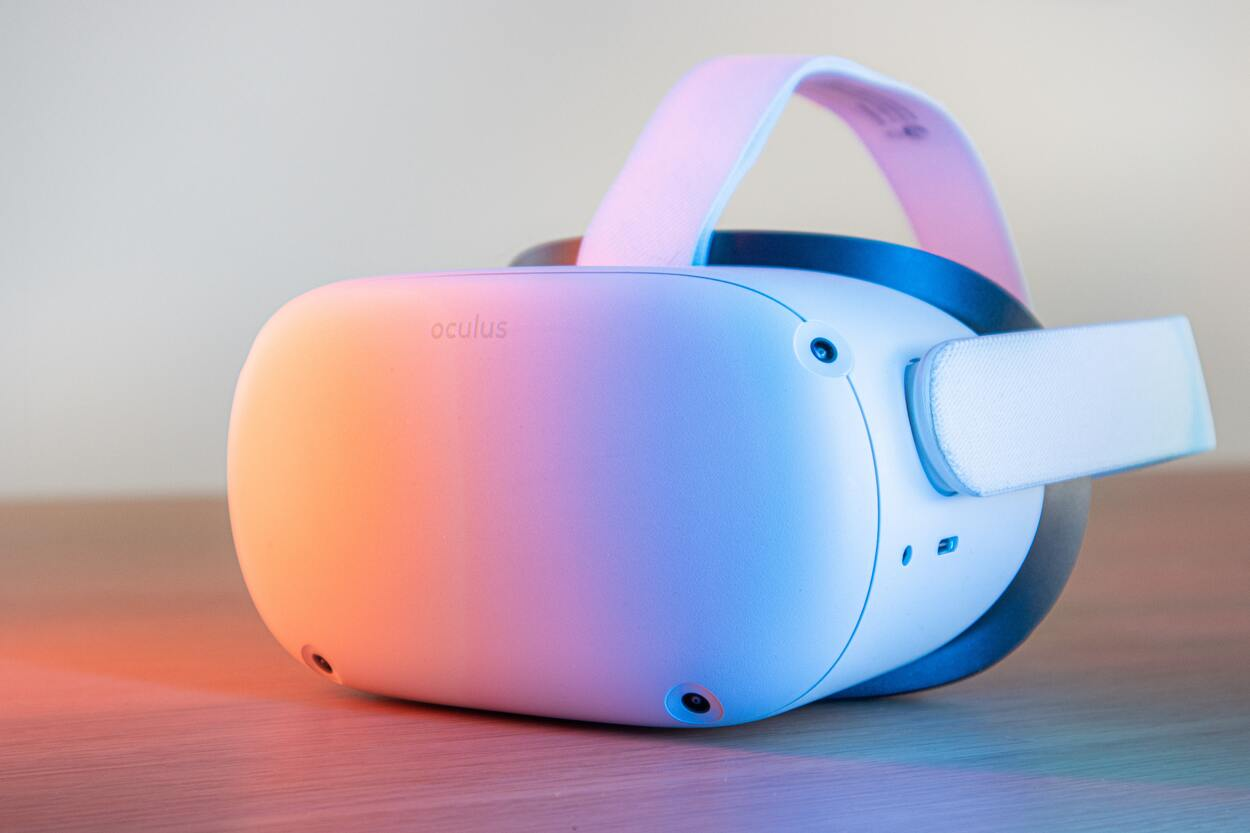
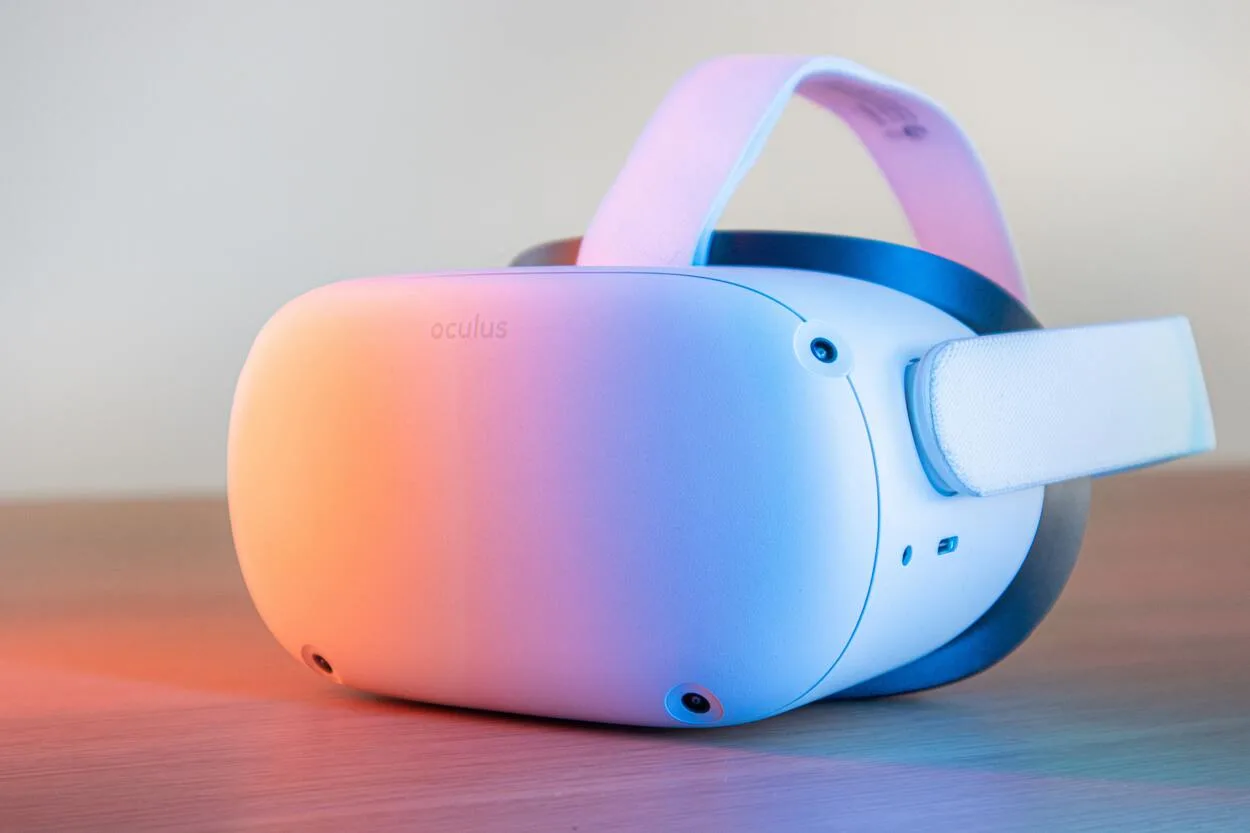
- The Oculus headset is a popular VR device that provides an immersive and interactive experience for users. However, users may encounter the issue of the device getting stuck on the Meta logo screen, which can be frustrating.
- The causes of this problem can vary from software updates to hardware issues, but there are several fixes that users can try, such as restarting the device, rebooting the software, clearing the cache, updating the software, and checking the cables and ports.
- To prevent this issue, users should keep the device updated, avoid overheating, charge the battery, handle the hardware with care, and restart the device regularly.
- By following these prevention tips and applying the fixes when necessary, users can ensure that their Oculus device runs smoothly and provides an enjoyable VR experience.