
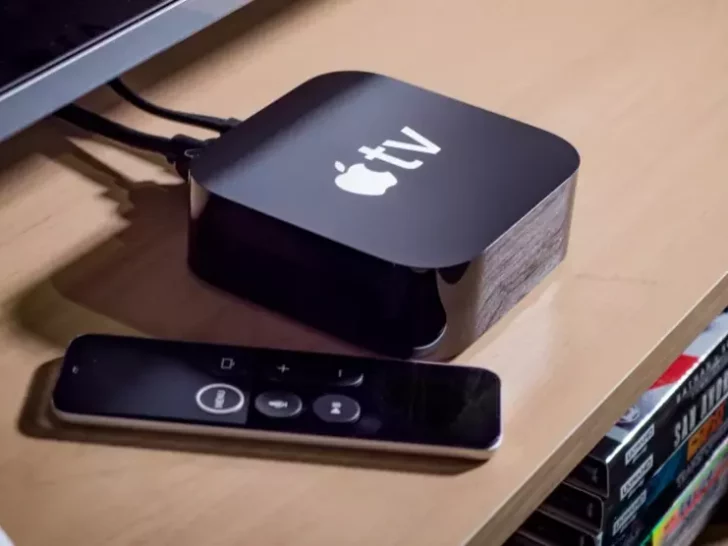
Incorrect audio settings are the usual cause of why your Apple TV has audio issues. To fix it, change the audio format on your Apple TV.
In this article, I will share some ideas on how to fix an Apple TV with no sound. Also, I’ll show you how to diagnose the problem to help you resolve the audio issues of your Apple TV.
Apple TV 4K is the latest model of Apple TV with quite similar features as the older versions but with a redesigned remote and A15 bionic processor.
There is no doubt Apple is indeed one of the leading innovators in today’s world. I guess we can all expect that maybe in the next few years, Apple might release virtual reality headsets or self-driving cars. Who knows?
For now, let’s get to the core question – how to fix Apple TV with no sound?
By continuing to use this website you agree to our Terms of Use. If you don't agree to our Terms, you are not allowed to continue using this website.
Common Reasons Why Apple TV Has No Sound Issue
Apple TV may encounter audio issues due to the following:
- incorrect audio settings
- hardware problems
- problems with the content format
It is important to diagnose what’s causing the audio loss in your Apple TV to find the perfect solution. This will also save you the stress and time of trying to fix your Apple TV.
In the succeeding sections, I’ll discuss how you’re going to resolve the audio issues in your Apple TV.
How to Fix Apple TV With No Sound
| How to Fix | Explanation |
| Restart the Apple TV. | Press and hold the back and menu buttons on the Siri remote button until the status lights blink rapidly. Unplug the Apple TV from the power source and reconnect it after five seconds. Go to Settings on Apple TV. Navigate to System and select Restart. |
| Check cable connections. | Check for loose connections and make sure the TV or home theater network is plugged into the right input. You can also replug and plug all the cables and ensure they’re firmly attached. |
| Adjust Apple TV volume. | Adjust the volume to a higher level and see if the no audio has been resolved. |
| Disable Dolby Digital. | Go to Settings on your Apple TV menu. Navigate to Audio and Video and select Audio Output. Turn off the Dolby Digital option. |
| Set Audio Mode to auto. | Navigate to Settings on your Apple TV menu. Go to Audio and Video and change Audio mode to Auto. |
| Change audio settings. | Try changing the Audio Format and Audio Output settings. You can also switch the Audio Output settings to Best Quality Available or Stereo. |
| Reset the Apple TV box. | Turn off the device and unplug it from the power source. Wait for 2 minutes before plugging it in and reconnecting. |
| Contact Apple Support. | If the issue still persists, contact Apple Support for further assistance. |
How do I reset the sound on my Apple TV?
Follow these steps to reset the sound on your Apple TV:
- Go to Settings on your Apple TV.
- Then Navigate to Audio and Video and choose Audio Output.
- Now change the audio output mode from Audio to Auto.
- Play something to check if the audio issue is resolved.
If you want to know more about changing other audio settings on your Apple TV, check here.
Why is there no sound on Netflix Apple TV?
If there is no sound on Netflix Apple TV, it could be problems with the audio settings on your device or speaker setup.
Here’s a quick fix for you:
- Try playing other movies or TV shows to see if the audio is working.
- Check for loose connections.
- Make sure the speakers are set up properly.
- Change audio settings.
- Adjust your device’s audio output settings to Stereo or Linear PCM output.
How do I get the volume to work on my Apple TV?
You can use the Siri remote control to get the volume to work on the Apple TV.
All you have to do is go the Settings on your Apple TV and navigate to Remotes and Devices > Volume Control and choose Auto.
This may not work on other devices though. That said, you should have a quick look at this article from Apple Support.
How do I get sound through HDMI on Apple TV?
Follow these steps:
- If you’re using a HomePod or HomePod Mini Speakers, make sure to set it up as default speakers for the Apple TV.
- Go to Settings on Apple TV > Video and Audio > Audio Output.
- Choose HomePod or HomePod Mini Speakers as the default speakers.
- Choose Play Television under Audio Return Channel.
Why did my Apple TV stop controlling the volume?
The Apple TV volume may stop working due to issues with the battery, hardware malfunction, or problems with the remote.
If it’s a problem with the battery, you have to recharge using a lightning cable. If it’s a hardware fault, make sure to update the Apple TV firmware. Replace your remote with a new one to get the Apple TV to work again.
If all else fails, contact Apple Support for further assistance.
Summary
Incorrect audio settings, hardware problems, and problems with the file that you’re trying to play are the top reasons why your Apple TV encountered some audio issues.
There are a few things that you can do to resolve the issue such as resetting the device and changing the audio setting. You can also contact Apple Support for further technical help.
Check this article if you need help with Apple TV remote that’s not working.