

If you’re like most people, you probably have a whole pile of remote controls scattered around your house. There’s one for the TV, one for the cable box, one for the DVD player…the list goes on and on.
And while it might sound like a daunting task, don’t worry – we’re here to help. In this guide, we’ll walk you through everything you need to know about Insignia Xfinity remote codes, from how to find them to how to program them.
| How to Set Up the Xfinity Remote? | The method you use to configure your Xfinity remote for use with your Insignia TV will depend on whether or not your Xfinity remote contains a “setup” button. Also, there are alternative configurations possible using a microphone-equipped smart TV remote. |
| Remote Without A Setup Button | Hold the speech button (the tiny microphone) and say “Program remote” if your TV has been paired for speech capabilities but the remote isn’t responding to TV commands. Another option is to navigate to “Remote Settings” and configure it there, following the on-screen prompts. |
| Insignia Xfinity Remote Codes | The ability to pair your Xfinity remote is useful even if you don’t have the code. Xfinity provides a variety of codes, each of which is specific to a different brand and model of remote control. See below for a breakdown of the groups and their relative numbers. |
| How to Fix Issues with Your Xfinity Remote? | If you’re having difficulties pairing your remote, we’ve outlined some common issues and how to fix them. Put your remote back to factory settings Battery Life: Worth a Check Check That The Sensor Is Not Blocked |
By continuing to use this website you agree to our Terms of Use. If you don't agree to our Terms, you are not allowed to continue using this website.
How to Set Up the Xfinity Remote?
Believe it or not, pairing your Xfinity remote with your Insignia smart TV is actually pretty simple.
First things first, you’ll need to find the right code for your device. Don’t worry, this isn’t as complicated as it sounds. The easiest way to do this is to head over to the Xfinity website and search for your device’s brand and model number. Once you’ve got that, the website will give you the corresponding code – easy peasy.
Next, turn on the device you want to control and hold down the Setup button on your Insignia Xfinity remote until the LED light blinks twice. Then, enter the code you found earlier using the number buttons on the remote. If the code is correct, the LED light will blink twice again.
Finally, test out your remote to make sure everything is working as it should. If your device responds to the remote, congratulations – you’ve successfully set it up! If not, try entering the code again or searching for a different one on the Xfinity website.
Follow These Detailed Steps to Get Started:
Pairing your Xfinity remote with a setup button is like a match made in tech heaven. With just a few simple steps, you can easily program your remote to work with your TV, cable box, soundbar, and any other compatible devices you have in your entertainment setup.
Make sure your TV is on and your Xfinity remote is in “TV mode.” Then, press and hold the setup button until the LED light blinks twice. Next, enter the code for your TV using the number buttons on the remote. If the code is correct, the LED light on the remote will blink twice again, and your TV should now be synced up with the remote.
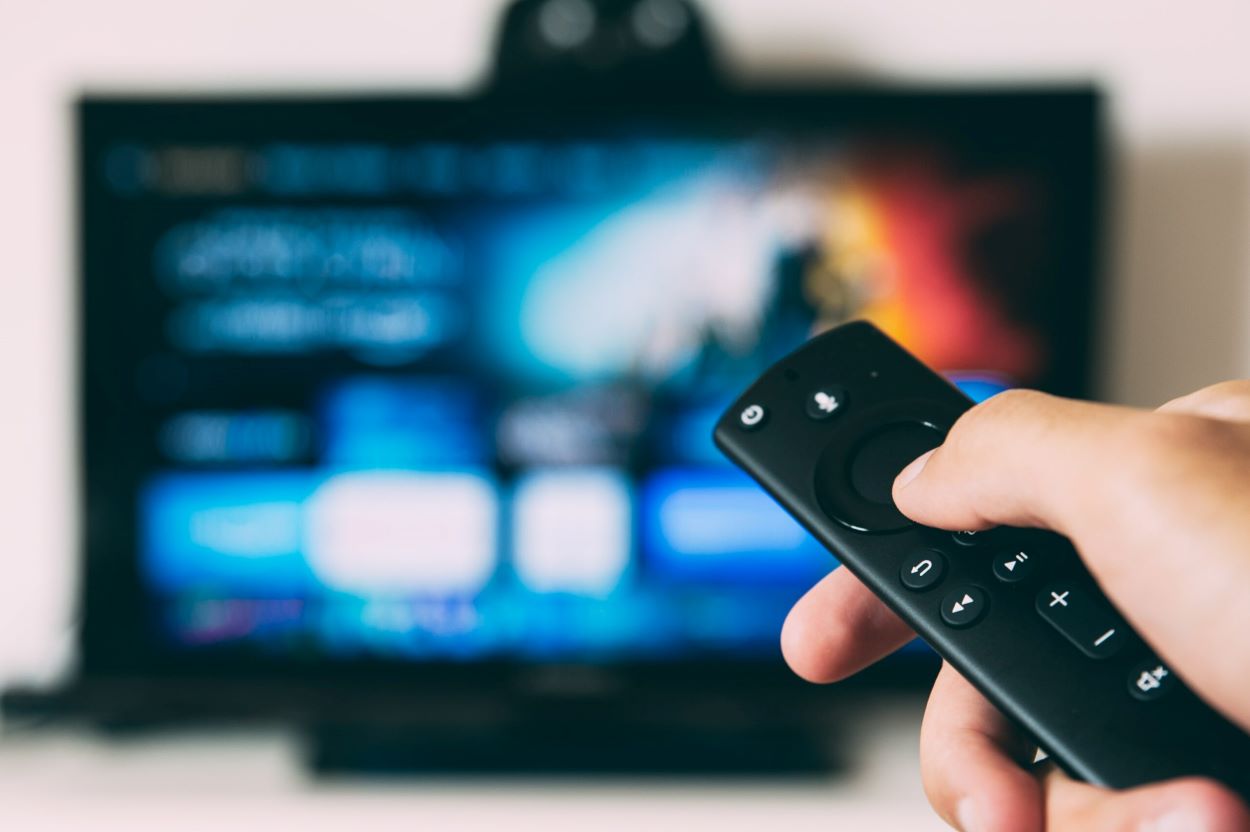

Remote Without a Setup Button
If you have an Xfinity remote without a setup button, don’t worry – you can still pair it with your TV in just a few simple steps. Here’s how:
First, turn on your TV and ensure that your Xfinity remote is in “TV mode.” Then, press and hold the “Xfinity” button and the “Info” button simultaneously until the LED light at the top of the remote changes from red to green.Next, enter the code for your TV using the number buttons on the remote. If the code is correct, the LED light on the remote will flash green twice, indicating that the remote is now synced up with your TV.


Insignia Xfinity Remote Codes
If you don’t know the pairing code for your Xfinity remote, learning how to pair it is still useful.
Multiple codes are available from Xfinity, each unique to the remote model and manufacturer. The categories and their respective identification numbers are listed below.
| Xfinity Remote | Insignia Codes |
| XR2, XR5, XR11, XR15 | 12049, 11756, 10171, 11564, 10885, 11780, 12434, 10706, 11892, 11326, 11204, 11641, 11785, 11517, 12002, 11963, 12258, 10463, 12263, 12264, 12267, 11660, 11385, 12751, 12417, 11463, 12282, 10842, 10178, 11603 |
| Digital Adapter Remote | 10171, 11780, 11204, 11326, 11641, 11517, 11785, 11892, 12002, 11963, 10463, 11660, 11385, 11756, 11463, 10037 |
| Silver Remote Grey OK Button | 0463, 0171, 1756, 0842 |
| Silver Remote Red OK Button | 10171, 12002, 11204, 11963, 10463, 11756, 11463, 10842, 11993 |
| Spectrum and Tracer Remotes | 12049, 11423, 10463, 10171, 11204, 11326, 11385, 11517, 11660, 11892, 11963, 12002, 12417 |
Insignia Codes
Alternatively, you can try connecting a universal remote with your Insignia TV if you’re still having problems.
Frequently Asked Question
Q: Insignia TV lost signal, how can I restore it?
Ans: There may be a need for an HDMI reset on your TV if it is having trouble receiving an HDMI connection from an HDMI port.
Unplugging the TV and any peripherals from it is required to reset the HDMI settings. Then, unplug and replug each of the HDMI cables. And finally, make sure everything is plugged in and receiving power.
Q: What can I do about a malfunctioning remote control?
Ans: It’s important to check the remote and make sure that none of the buttons are stuck or jammed. The battery contacts on the remote control could be grimy.
Take out the batteries, wipe the remote’s contacts using a cotton swab dampened in alcohol, then replace the batteries.
Q: How do I manually restart my TV?
Ans: Performing a restart is equivalent to unplugging and reconnecting the power to your television. System restart can be accessed from the Power menu under Settings on your TV.
To restart, select that option and then hit OK.
Conclusion
- The method you use to configure your Xfinity remote for use with your Insignia TV will depend on whether or not your Xfinity remote contains a “setup” button. Also, there are alternative configurations possible using a microphone-equipped smart TV remote.
- Hold the speech button (the tiny microphone) and say “Program remote” if your TV has been paired for speech capabilities but the remote isn’t responding to TV commands.
- The ability to pair your Xfinity remote is useful even if you don’t have the code. Xfinity provides a variety of codes, each of which is specific to a different brand and model of remote control.
- If you’re having difficulties pairing your remote check the batteries and if the sensor isn’t blocked.