


Insignia is a well-known brand of television that offers a variety of options for controlling the volume without the use of remote control. Whether you’ve lost your remote or just prefer to control your TV manually, there are several ways to adjust the volume on your Insignia TV.
These include using the physical buttons on the TV itself, using a universal remote control, using a streaming device’s remote control, using the TV’s built-in voice control, or using mobile devices.
These options provide flexibility and convenience for users, allowing them to easily adjust the volume without the need for a remote. So, if you’re looking for an easy way to control the volume on your Insignia TV without the use of a remote, read on for some possible solutions.
By continuing to use this website you agree to our Terms of Use. If you don't agree to our Terms, you are not allowed to continue using this website.
Attempt to Repair the Remote by a Simple Reset

If you’re having trouble with the volume control on your Insignia TV, but you don’t have the remote, there are a few things you can try to fix it. One option is to try resetting the TV. Here’s how to do it:
- Turn off the TV.
- Unplug the TV from the wall outlet.
- Wait for a few minutes.
- Reconnect the TV’s cable and turn it on.
By resetting the TV, you’re effectively restarting the device and clearing any temporary glitches or issues that may be causing the volume control to malfunction. If that doesn’t work, try these other options:
| Check the TV’s settings. | Make sure the TV’s volume isn’t set to a low level or turned off completely. |
| Check the TV’s connections | Make sure all cables are securely plugged in and that there are no loose connections. |
| Check the TV’s speakers | Make sure the speakers are turned on and that the volume isn’t turned down. |
| Check for external devices | Make sure no external devices (such as a sound bar) are connected to the TV and that they’re not causing the issue. |
| Get a universal remote | If none of the above methods work, you can try getting a universal remote that can control your TV. These remotes can often be programmed to work with various brands and models of TVs, including Insignia. |
Use the TV buttons
If you don’t have the remote for your Insignia TV and need to adjust the volume, you can still use the TV buttons to control it.
First, locate the buttons on the TV. They are typically located on the back or side of the TV and may be labeled as “volume” or have “+” and “-” signs.
To increase the volume, press the “+” button or the button labeled “volume up.” To decrease the volume, press the “-” button or the button labeled “volume down.”
A user interface with a TV remote control solution has been prototyped and implemented demonstrating a peer-to-peer video conference system. This was done through the use of on-screen displays, an iterative design process with multiple usability tests and an evaluation of similar video conference products as a basis.
Depending on the model of your TV, you have numerous possibilities for where they can be found.
Please note that the location and labels of the buttons may vary depending on the model of your Insignia TV. If you’re unable to locate the buttons, you can refer to the user manual of the TV for guidance.
If you are unable to locate the buttons or the TV buttons don’t work, you can also try using a universal remote that can control your TV. These remotes can often be programmed to work with various brands and models of TVs, including Insignia.
Buttons on the back of the television:
Buttons on the back of a TV, such as those found on Insignia TVs, can be used to control the volume without the need for remote control. These buttons are typically located near the bottom of the TV and include a power button, volume up and down buttons, and channel up and down buttons.
To use the buttons to control the volume, simply press the volume up or volume down button to increase or decrease the volume respectively. Additionally, the channel up and down buttons can be used to change channels if the TV is connected to a cable or satellite box.
These buttons can also be used to navigate the on-screen menu and adjust other settings on the TV. It’s a handy feature that can be useful in case of losing the remote or in case of power failure.
TV Has no Buttons


If a TV, such as an Insignia TV, doesn’t have buttons on the back for controlling the volume without remote control, there are still several options for adjusting the volume. One option is to purchase a universal remote control, which can be programmed to work with the TV.
This will allow you to control the volume and other functions of the TV using the universal remote. Another option is to use a smart device, such as a smartphone or tablet, to control the TV through an app or a smart home assistant like Alexa or Google Home.
Additionally, some TV models have built-in voice control, so you can adjust the volume or other settings by speaking commands to the TV.
If none of these options are available, the last resort can be using the manual provided by the manufacturer to access the service menu and adjust volume through remote codes.
Use a Mobile Application
Using a smartphone app to control the volume on an Insignia TV is a convenient option for those who have lost their remote or are unable to use it for any other reason. Many modern Insignia TVs are compatible with a smartphone app called the Insignia Connect App, which is available for both iOS and Android devices.
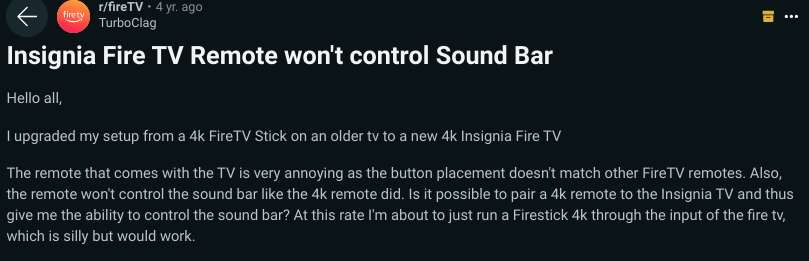

Image Credit: Reddit
Once the app is downloaded and set up, you can use it to control the TV’s power, volume, and other functions. The app can also be used to access and control other connected devices such as streaming devices, sound bars and etc. The app can also be used to access the on-screen menu and adjust other settings on the TV.
This feature can be particularly useful when you’re away from home or in another room, and you need to adjust the volume or change the channel on the TV. Moreover, it can be used as a remote control replacement in case you lose your original remote.
Using Universal Remote
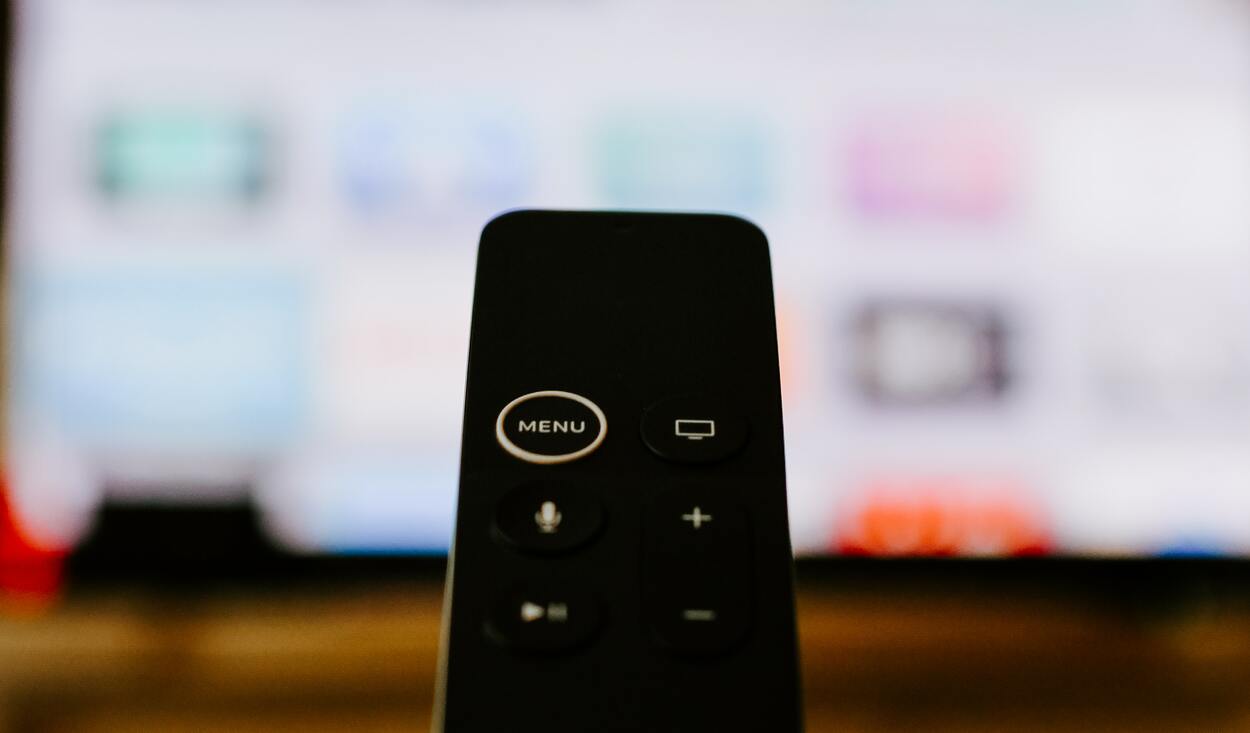
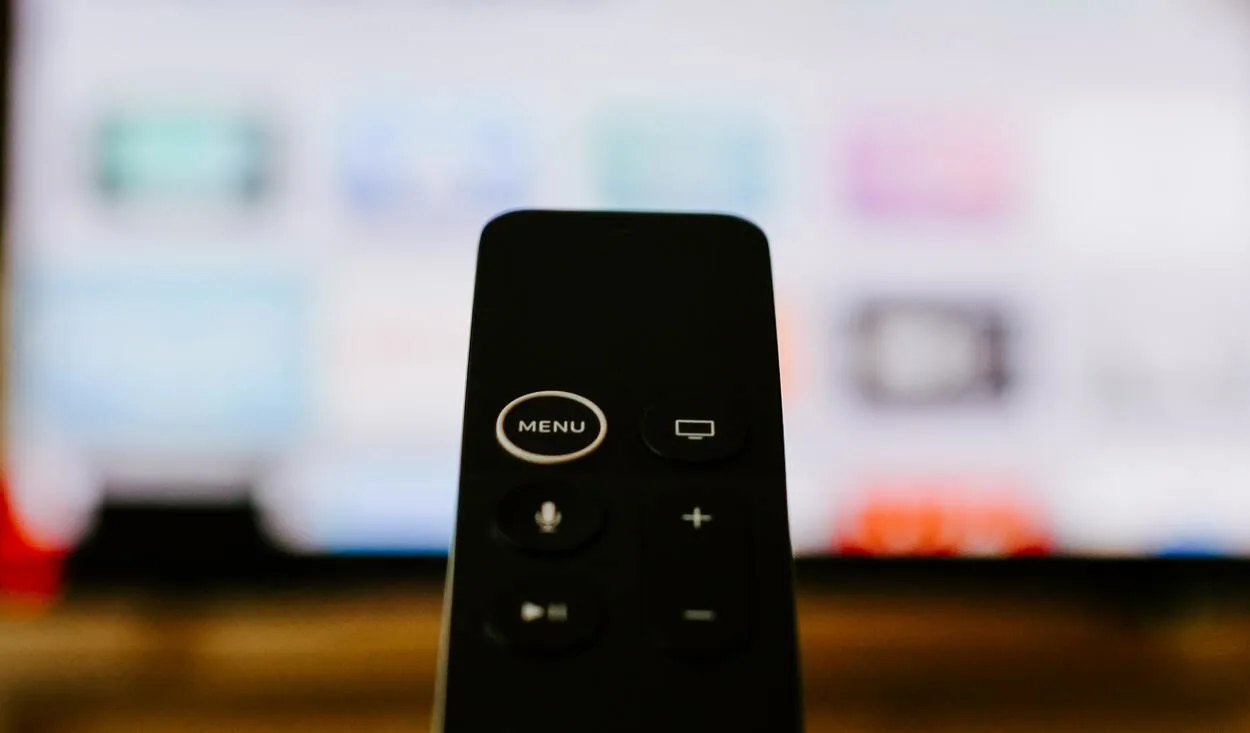
A universal remote control can be a useful solution for controlling the volume on an Insignia TV if you don’t have the original remote or it’s not working. A universal remote can be programmed to work with a variety of different TV models and brands, including Insignia TVs.
To use a universal remote with an Insignia TV, you’ll need to refer to the manual or the manufacturer’s website for specific programming instructions. This may include entering a code for the brand and model of the TV.
Once the universal remote is programmed correctly, you can use it to adjust the volume, change channels, and access other functions on the TV.
Some universal remotes also come with advanced features such as a macro function that can control multiple devices at once and some of them have backlit keys for easy use in dark rooms.
This can be a cost-effective solution for those who don’t want to purchase a new remote or want to control multiple devices using one remote.
FAQs
Where Are the Volume Buttons on Insignia TV?
The location of the volume buttons on an Insignia TV can vary depending on the model of the TV. They are usually located on the side, top, or bottom of the TV, or on the back of the TV. Some newer models may also have volume controls on the remote control, or via a mobile app or smart assistant.
It’s best to consult the TV’s manual or look for the buttons on the TV itself. If you can’t find the volume buttons on your Insignia TV please reach out to Insignia’s customer support for further assistance.
How Do I Manually Adjust the Volume on My Insignia TV?
To manually adjust the volume on an Insignia TV, you can use the buttons on the TV itself or a universal remote. The steps will vary depending on the specific model of the TV, but generally, you can follow these steps:
- Locate the volume buttons on the TV. They are usually located on the side, top, or bottom of the TV, or on the back of the TV.
- Press the volume up or down button to increase or decrease the volume respectively. On some models, the button may be labeled with a “+” or “-” sign.
- Use the mute button to turn off the sound completely.
- Adjust the volume to the desired level.
If you have a universal remote, you may need to program the remote to work with your Insignia TV before you can use it to adjust the volume. The instructions on how to do this should be included in the manual for the remote.
Conclusion
- Adjusting the volume on an Insignia TV without a remote can be done through the use of the buttons on the TV itself or through the use of a universal remote.
- It’s important to check the TV’s manual for specific instructions on how to use the buttons on the TV.
- If a universal remote is being used, it may be necessary to program the remote to work with the TV.
- It’s also worth noting that some newer Insignia TV models may have additional volume control options such as using a mobile device as a remote or voice commands through a smart assistant.
- Overall, while not having a remote may seem like an inconvenience, it’s still possible to adjust the volume on an Insignia TV without one.