
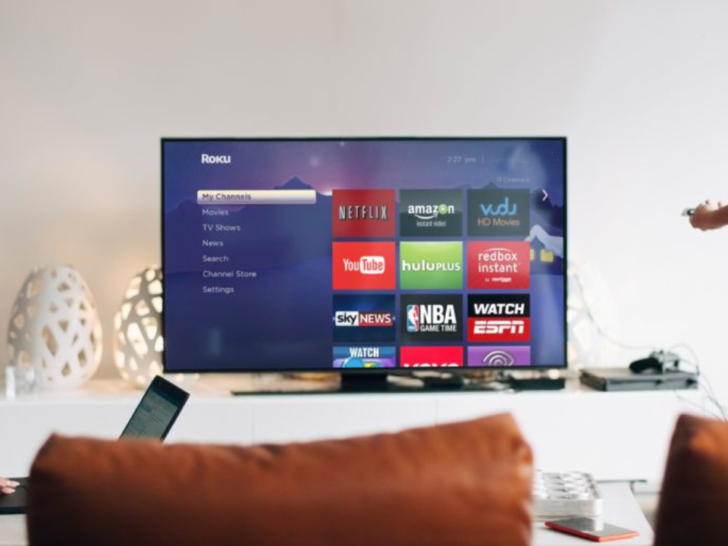
Summary: To change Roku TV input, simply turn on the Roku TV and navigate to the Home screen. Go to Settings > TV Inputs. Lastly, follow the instructions on the screen to finish setting up the input.
As for this article, I’ll show you how to change the input on your Roku TV to maximize the viewing experience.
Read on to find out!
By continuing to use this website you agree to our Terms of Use. If you don't agree to our Terms, you are not allowed to continue using this website.
How do I set up TV Input on my Roku?
Follow these steps to set up input on your Roku TV:
As for reference, let set up input for Live TV on your Roku TV.
- Turn on the Roku TV.
- Navigate to the Home screen and select Live TV.
- Go to Settings > TV Inputs > Live TV > Set Up Input.
- Follow the prompts on the screen to finish setting up the input on your Roku TV.
Can Roku remote change TV Input?
Yes, you can use the Roku remote to change TV input.
However, you’ll have to use it in conjunction with an HDMI CEC TV. If your TV is HDMI-CEC-capable, it will automatically switch to its proper input when you press the Home button on the Roku remote.
The caveat is that when your Roku is plugged into HDMI 1 port, it will make you switch to HDMI 2 automatically. Unfortunately, there is no button for changing HDMI input on the Roku remote.
If you want to check if your TV is HDMI-CEC-capable, grab your TV remote and follow these steps:
- Press the Menu button.
- Navigate to Settings > Input > System or System Options.
- Find the CEC, HDMI, or CEC HDMI options.
- Select Enable.
Why can’t I find TV Input on Roku?
Only Roku TV has the TV input feature.
If you have the Roku Ultra, you won’t be able to find input on the TV settings. You can still go to input settings by pressing Home key on the Roku remote.
Watch the video for a quick tutorial on how to switch input on Roku TV.
How do I change the input on my TV without Roku remote?
To change the input on your Roku TV without using the remote, use the Roku remote app.
Follow these steps:
- Go to Settings.
- Navigate to System > Power Settings.
- Select Power On.
- Choose Input Option.
- After choosing your preferred input, press the Home button to save changes.
The Roku TV has three inputs, namely;
| INPUT | DESCRIPTION |
| HDMI | for connecting cable and satellite TV receivers |
| AV IN | for cable TV boxes |
| cable and antenna input | for connecting to the antenna using the coaxial port |
Why is my Roku HDMI not working?
In most cases, the cable is the main culprit why the Roku HDMI is not working. Damaged cable or loose connections can cause malfunction on the HDMI port.
To fix this, try the following:
- Unplug and replug the HDMI cables.
- Make sure the cords are inserted on the right port.
- Reset the Roku TV.
- Replace HDMI cable.
- Update the Roku TV.
Final Words
As you can see, changing input on Roku TV is simple. All you to do is navigate to TV settings, change input and make sure to save changes.
You can also use the Roku remote app to change input. It functions like a physical remote allowing you to control the Roku TV.
Check out this article for other Roku TV hacks.