
It is not possible to add additional memory to a Samsung Smart TV after purchase, as the memory components are integrated into the TV’s circuitry and cannot be easily upgraded or modified.
If you find that your Samsung Smart TV is running slow or experiencing performance issues due to limited memory, there are a few steps you can take to improve its performance. Read more to find out!
| How to Upgrade Your Samsung Smart TV’s Memory | Method 1: Remove unused applications and clear the cache Method 2: Configure External Storage as Internal Storage |
| How Can I Transfer Apps from My Samsung Smart TV to an External Drive? | First, go to Settings > General Settings > Apps. Choose the apps you want to transfer to the external storage drive. The “Storage” option will appear on your screen. |
| How much memory does my Samsung Smart TV have? | The RAM storage capacity of your Samsung Smart TV varies depending on the model. |
| Keeping Apps Up to Date | Due to unnecessary data, the device can run out of memory. To avoid this on your device, frequently update the hardware, application, and television. |
| Use a Streaming Player | You can view movies and TV shows online without downloading them using a streaming player. |
By continuing to use this website you agree to our Terms of Use. If you don't agree to our Terms, you are not allowed to continue using this website.
How to Upgrade Your Samsung Smart TV’s Memory?
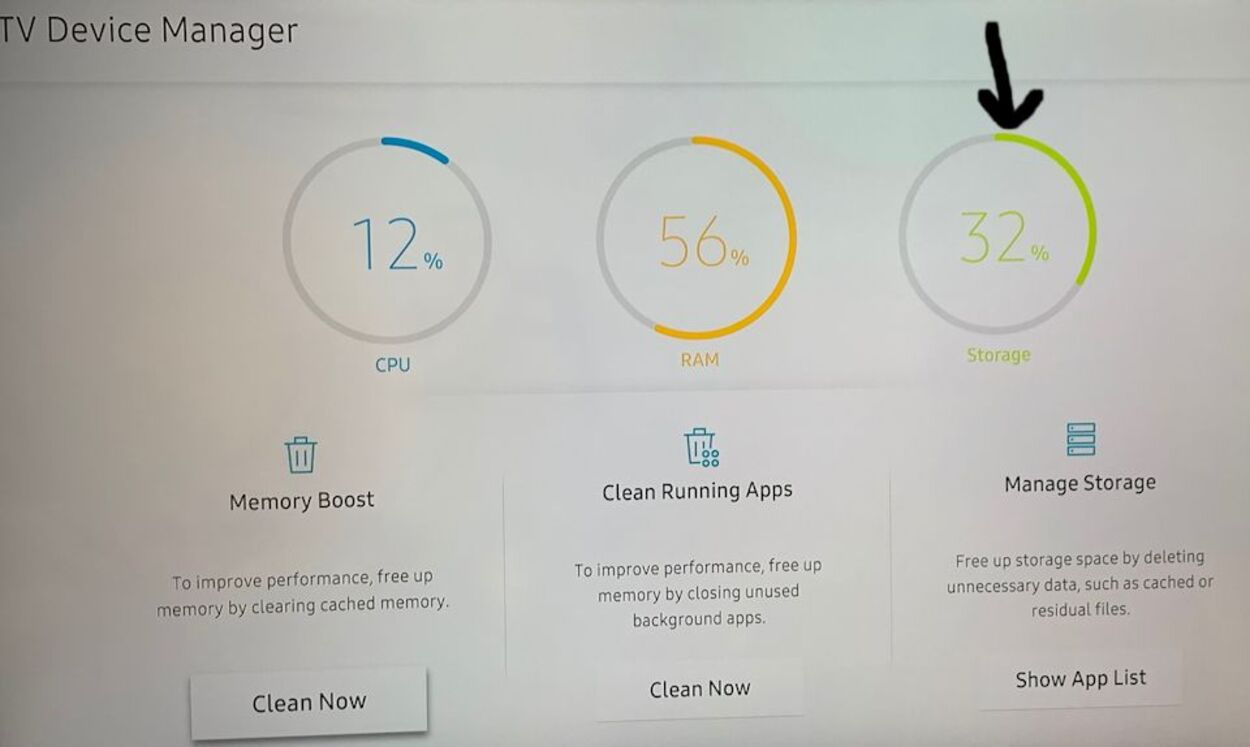
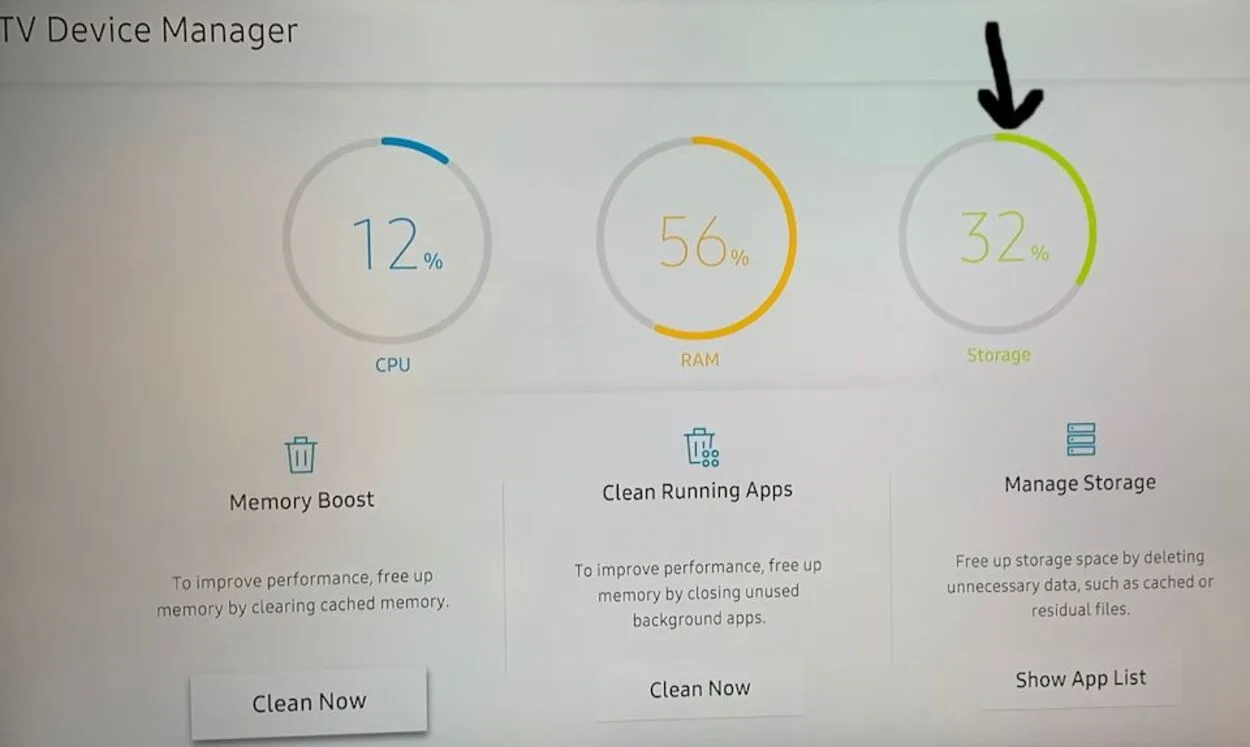
Different smart TVs have varying amounts of storage; some offer huge storage spaces, and others don’t. You may wish to increase the device’s memory or upload more files to your smart TV. The techniques listed below can help you give your smart TV extra storage.
Method #1: Remove unused applications and clear the cache
To remove unused applications and clear the cache on a Samsung Smart TV, you can follow these steps:
- Press the Home button on your Samsung TV remote control.
- Navigate to the Apps icon and select it.
- Select the Settings icon (gear icon) in the top right corner of the screen.
- Select the App manager option.
- Select the app you want to uninstall and then select Delete.
- Confirm that you want to uninstall the app by selecting OK.
To clear the cache on your Samsung Smart TV:
- Press the Home button on your Samsung TV remote control.
- Navigate to the Settings icon (gear icon) and select it.
- Scroll down to the Support option and select it.
- Select Self Diagnosis.
- Select Reset Smart Hub.
- Enter the PIN code for your TV if prompted.
- Select Reset Smart Hub to confirm.
Method #2: Configure External Storage as Internal Storage
By using this technique, you will configure a pluggable storage device as the smart TV’s internal memory storage. You must unplug this storage device after use in order to plug it back in again later.
Therefore, you must carefully follow the simple instructions below if you wish to use an additional storage device to save files on your Samsung Smart TV without any problems.
- Ensure that your external storage is powered and connected to your Samsung Smart TV.
- Go to “Samsung Smart TV Settings” and select it.
- Simply press the “Select” button on your remote.
- On your screen, select “Storage” from the following menu.
- Select the external storage device’s name, then click “Select” to connect your Samsung Smart TV to it.
- Click “Select” after selecting “Setup” to serve as internal storage.
- Remain patient and wait for the procedure to finish.
This process involves formatting the external storage device and then using it as the internal storage of your TV.
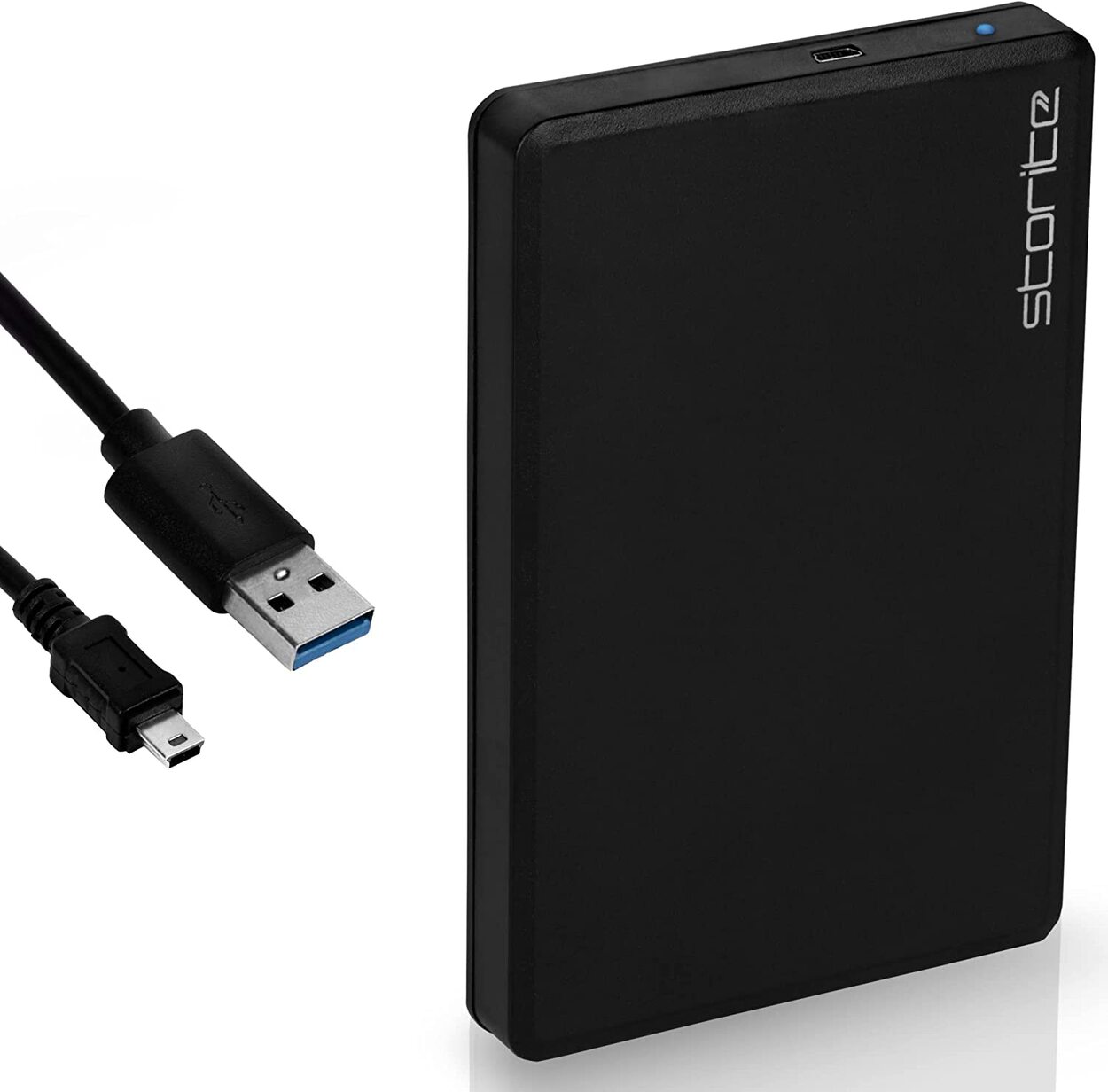
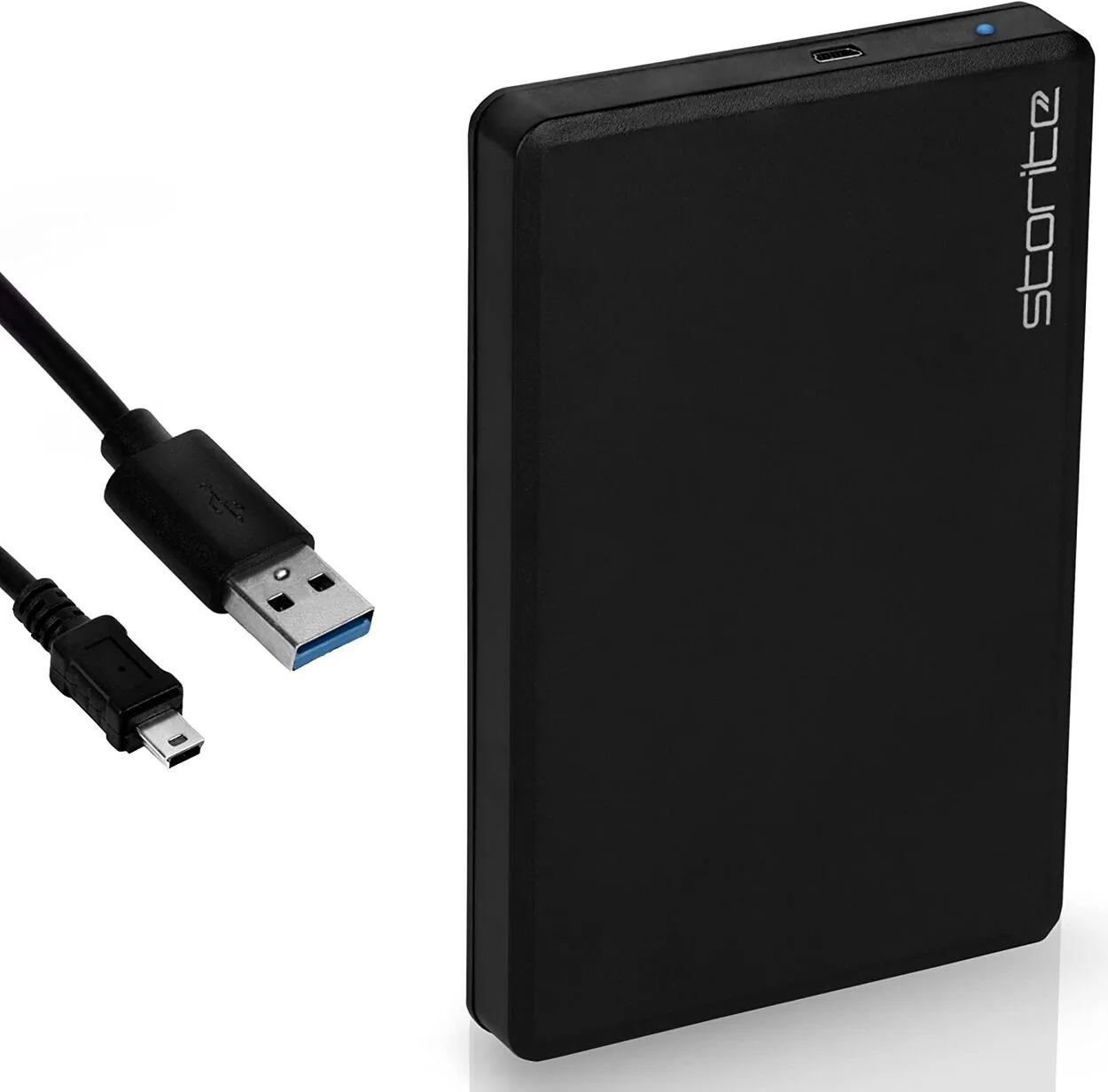
How Can I Transfer Apps from My Samsung Smart TV to an External Drive?
| Facts and Figures | Details |
|---|---|
| Supported external storage devices | USB flash drive or hard drive with USB connection |
| Maximum external storage capacity | Up to 2TB for USB flash drives and up to 5TB for hard drives |
| TV models that support app transfer | Most Samsung Smart TVs released after 2015 |
| Types of apps that can be transferred | Downloaded apps from Samsung App Store or Smart Hub |
| Transfer method | Move the app from the TV’s internal storage to the external drive |
| Benefits of transferring apps to an external drive | Free up internal storage on the TV and improve performance |
| Potential drawbacks | Slow app loading times due to slower read/write speeds of external drive |
On a Samsung TV, follow these steps to move apps to an external drive:
- Navigate to Settings.
- Go to “General Settings” and then select “Apps.”
- The apps you want to transfer to the external storage drive should be chosen.
- The “Storage” option will appear on your screen.
How much memory does my Samsung Smart TV have?
The amount of memory that a Samsung Smart TV has can vary depending on the model and specifications. To find out how much memory your Samsung Smart TV has, you can follow these steps:
- Press the Home button on your Samsung TV remote control.
- Navigate to the Settings icon (gear icon) and select it.
- Scroll down to the General option and select it.
- Scroll down to the About This TV option and select it.
- Look for the option that displays the memory or RAM capacity of the TV. This may be listed as “Memory Size,” “RAM,” or something similar.
The amount of memory listed will tell you how much RAM the TV has, which is the type of memory that is used for running apps and processing data. Note that the actual amount of usable memory may be slightly less than the total amount listed, as some of it is reserved for system processes and other functions.
Some statistics model-wise on how much memory Samsung Smart TVs have
| Samsung Smart TV Model | Internal Memory | RAM |
|---|---|---|
| Samsung QN90A | 16GB | 6GB |
| Samsung QN85A | 16GB | 4GB |
| Samsung QN80A | 8GB | 3GB |
| Samsung QN75A | 8GB | 2GB |
| Samsung QN70A | 8GB | 2GB |
| Samsung QN65A | 8GB | 2GB |
| Samsung QN60A | 8GB | 2GB |
| Samsung Q800T | 8GB | 2.5GB |
| Samsung Q80T | 8GB | 2GB |
| Samsung Q70T | 8GB | 2GB |
| Samsung Q60T | 8GB | 2GB |
| Samsung TU8000 | 4GB | 1.5GB |
| Samsung TU7000 | 4GB | 1GB |
Keeping Apps Up to Date
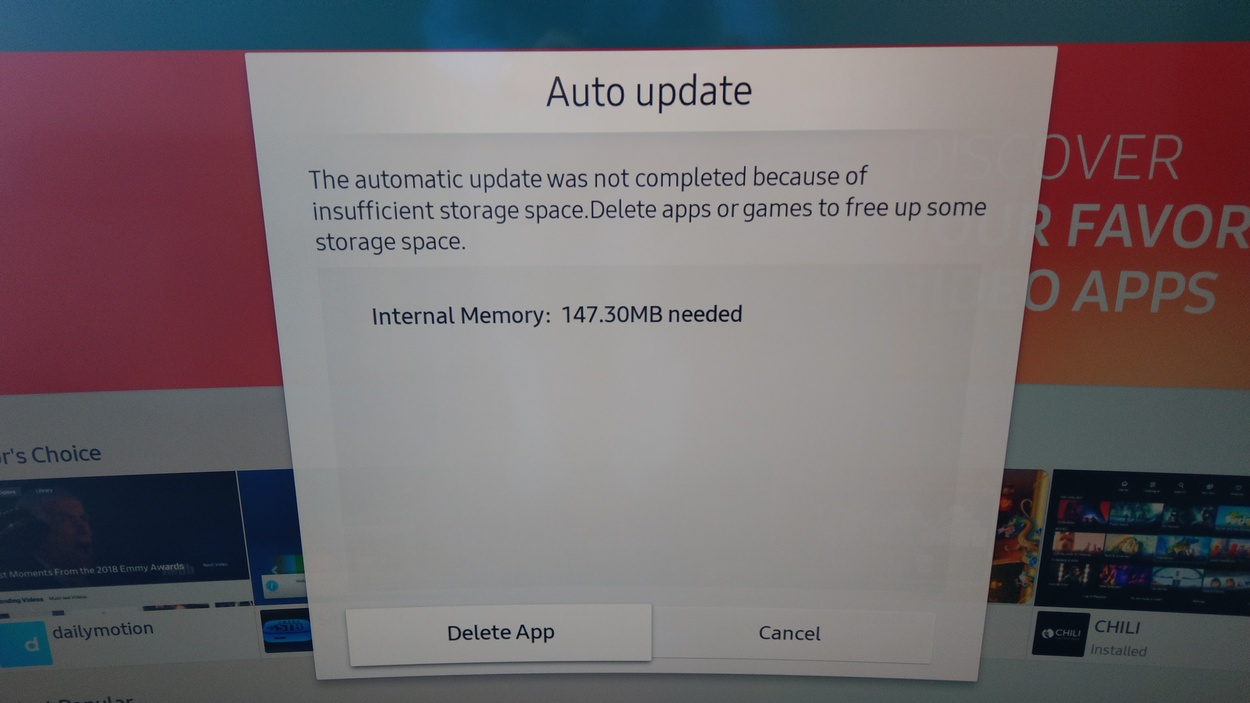
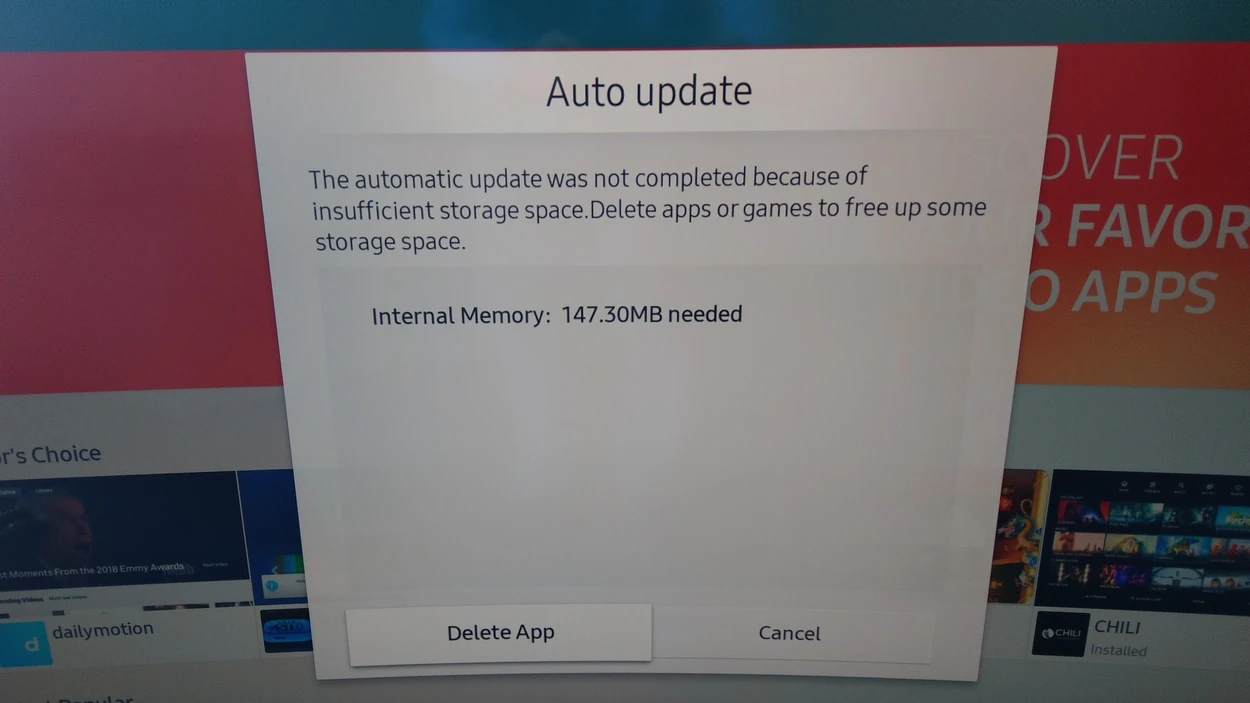
Keeping apps up to date on a Samsung TV can help with memory because app updates can often include improvements to memory usage and other performance optimizations.
App updates can help to address these issues by clearing out unnecessary files and optimizing memory usage. By keeping apps up to date, you can ensure that you are running the latest and most efficient versions of each app, which can help to improve the overall performance of your Samsung TV.
To keep your apps up to date on your Samsung TV, follow these steps:
- Press the Smart Hub button on your Samsung TV remote.
- Navigate to the App store using the arrow keys and press the OK button.
- Once in the App store, select the Updates tab from the top menu.
- You will see a list of all the apps that have available updates. Select the app you want to update, and then select Update.
- Wait for the update to download and install. Depending on the size of the update, this could take a few minutes.
Alternatively, you can set your Samsung TV to automatically update apps. Here’s how:
- Press the Smart Hub button on your Samsung TV remote.
- Navigate to Settings and select Support.
- Select Software Update and then select Auto Update.
- Turn on the toggle switch next to Auto Update Apps.
With this setting turned on, your Samsung TV will automatically check for updates to your installed apps and download and install them as they become available.
Frequently Asked Questions (FAQs)
Do I need to clear the cache on my Samsung Smart TV?
Answer: Yes, you can get better screen mirroring performance on your Samsung smart TV by clearing the cache. Your TV’s cache is a location where it stores temporary information from websites and apps you use. Over time, this data may grow congested and result in issues like sluggish operation or communication problems.
Why can’t I uninstall apps from my Samsung TV?
Answer: The pre-installed apps cannot be deleted since the ‘Delete’ option is disabled. Typical examples include Netflix, Amazon Prime, etc. However, there are ways around this. But bear in mind that not all models will be compatible.
What are the 123 buttons on the Samsung remote?
Answer: The Samsung Smart Remote is only supported on Samsung UHD TVs. It has only the essential keys and some special function keys. The user can access additional virtual keys on the TV screen by clicking the “123” key.
Conclusion
- To upgrade your Samsung smart TV’s memory, you may either remove unused applications and clear the cache or configure external storage as internal storage.
- To transfer apps from your Samsung smart tv to an external drive, go to Settings > General Settings > Apps. Then, choose the apps you want to transfer to the external storage drive. The “Storage” option will appear on your screen.
- The RAM storage capacity of your Samsung Smart TV varies based on the model.
- The gadget may run out of memory as a result of unnecessary data. Update your device’s hardware, software, and TV frequently to prevent this.
- Using a streaming player, you may view movies and TV shows online without downloading them. This frees up a ton of storage space on your TV.
Other Articles
Why Alexa Is Unable To Turn On My Samsung TV? (Find Out)
Why Does My Samsung TV Have a Fuzzy Picture? (And How to Fix It?)
How to Reset an LG TV When the Screen Is Black [Full Guide!]