


Do you feel like your Nest thermostat is working against you by going into Eco mode at the most inconvenient times? Perhaps you’re trying to warm up your home on a chilly winter day, but your Nest keeps turning down the temperature to save energy. Don’t worry, you’re not alone! Many Nest users have experienced frustration with the Eco mode feature.
But fear not, there are solutions to prevent your Nest from going into Eco mode. In this article, we’ll explore some tips and tricks to keep your Nest thermostat working the way you want it to.
Whether you’re tired of coming home to a chilly house or you simply want more control over your Nest thermostat, we’ve got you covered. So, let’s dive in and discover how to stop your Nest from going into Eco mode once and for all!
| Steps | Explanation |
| Select your Nest thermostat | From the Nest app’s home screen, select your Nest thermostat. |
| Enter into Nest settings | Tap the Nest settings icon in the top right corner of the screen. |
| Disable automatic switching to Eco Temperatures. | At the top of the screen, you can disable automatic switching to Eco Temperatures. |
By continuing to use this website you agree to our Terms of Use. If you don't agree to our Terms, you are not allowed to continue using this website.
Why Does My Nest Thermostat KeepTurning to Eco Mode?
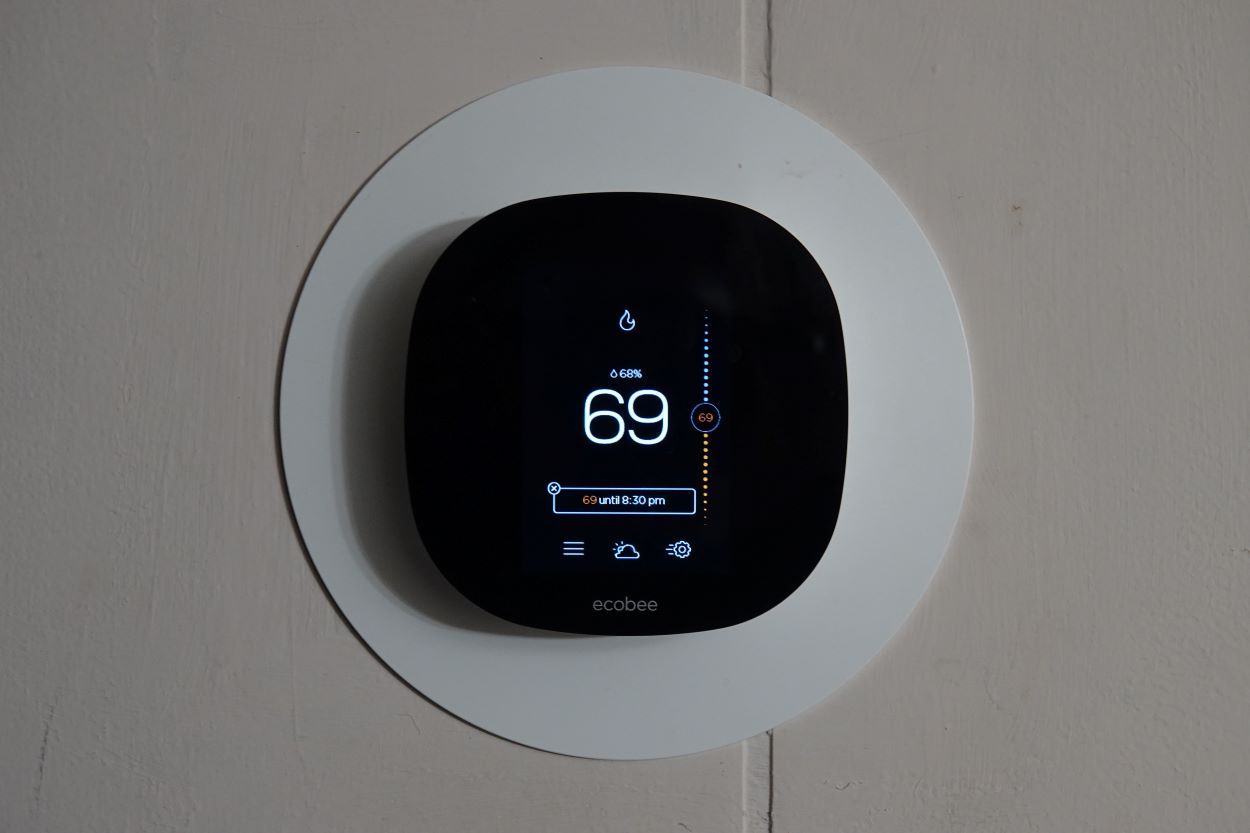

Your Nest thermostat may be turning to Eco mode for a variety of reasons. By default, Nest thermostats are set to follow a schedule that you create when you first set up your thermostat. If your Nest is going into Eco mode, it could be because the schedule is telling it to. You can adjust your schedule to better suit your needs by going into the Nest app and making changes to the temperature settings.
Also, Nest thermostats have a built-in occupancy sensor that detects when people are present in a room. If the sensor doesn’t detect any movement for a certain amount of time, the Nest may assume that nobody is home and switch to Eco mode to save energy. You can adjust the occupancy sensor settings in the Nest app to prevent this from happening.
By understanding why your Nest thermostat is turning to Eco mode, you can take steps to prevent it from happening in the future. Whether it’s adjusting your schedule, tweaking your occupancy sensor settings, or troubleshooting your heating and cooling system, there are plenty of ways to keep your Nest thermostat working the way you want it to.
How Can You Prevent Your Nest Thermostat from Going Into Eco Mode?
Nest thermostats automatically switch to the eco mode when no one is at home. You’ll save energy by not cooling or heating your home when it’s not necessary. You can also manually set your thermostat to eco mode using the Nest app or Google Assistant.
You can turn off your thermostat if you do not want it to automatically switch into eco mode. To switch it off, you must do the following:
- From the Nest app’s home screen, choose your Nest thermostat.
- Click on the Nest settings icon in the top right corner of the screen.
- Now select Home/Away Assist.
- Now you can turn off the automatic switching to Eco Temperatures.
- You can also select if your thermostat will use Eco Temperatures while you’re home or away.
Once you’ve turned off automatic switching, your thermostat will not change to eco mode without your consent. You’ll have to do it manually if you want to go into eco mode while you’re away or at home. Follow the procedure below to do it manually:
- Open your Google Home app.
- Search for your Nest thermostat and click on the button.
- Scroll down to the settings menu.
- Now choose Preset.
- After that, select Eco
After following these steps, the eco mode will be activated, and your regular schedule will resume when the temperature is set to change again.
When you’re at home, you can also use Google Assistant or the Home app to easily adjust the temperature.
Should You Use Eco Mode On Your Nest Thermostat?
Using Eco mode on your Nest thermostat can be a great way to save energy and reduce your heating and cooling costs. When you turn on Eco mode, your Nest will automatically adjust the temperature to conserve energy when you’re away from home or asleep. This can help you save money on your energy bills while also reducing your carbon footprint.
However, whether or not you should use Eco mode on your Nest thermostat depends on your individual needs and preferences. If you’re someone who is always on the go and frequently out of the house, Eco mode can be a great way to save energy without sacrificing comfort. On the other hand, if you work from home or spend a lot of time at home during the day, you may prefer to have more control over your thermostat settings and may not want to use Eco mode.
It’s important to note that while Eco mode can help you save energy, it may not be the best option for everyone. If you have pets or plants that require a specific temperature range, for example, Eco mode may not be the best choice for you. Additionally, if you have health concerns that require a specific temperature range, such as asthma or allergies, you may need to adjust your thermostat settings accordingly.
How to Set Net Thermostat to Hold Temperature
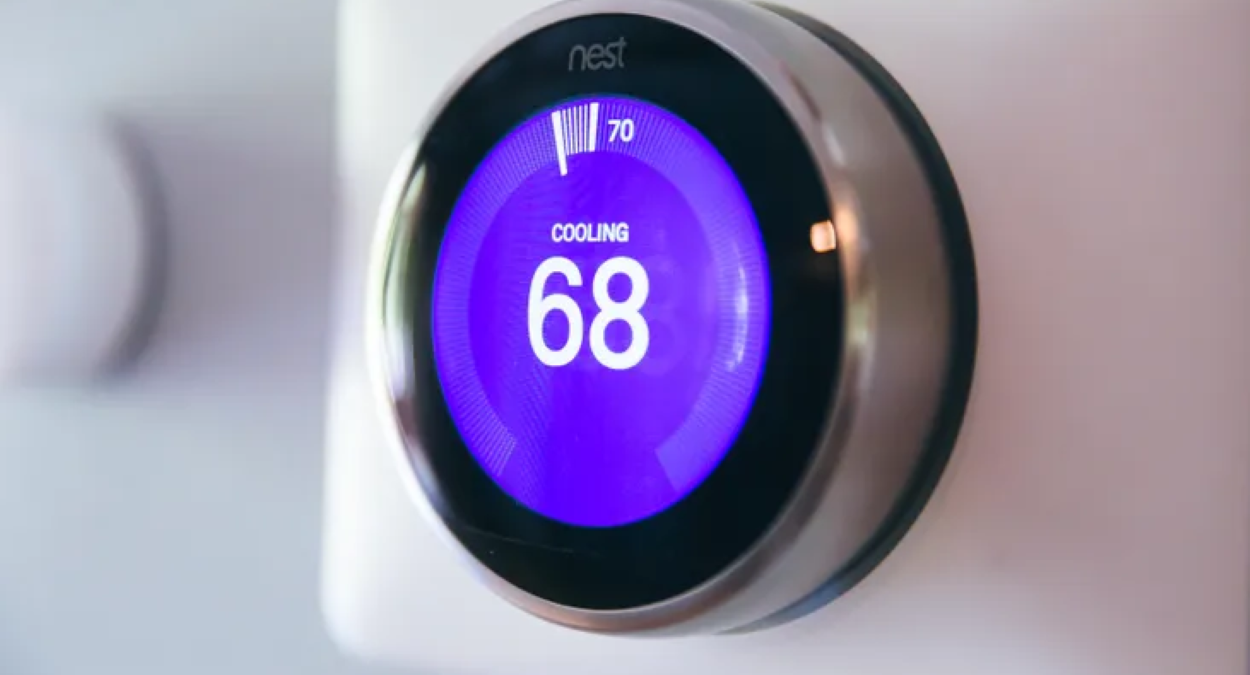
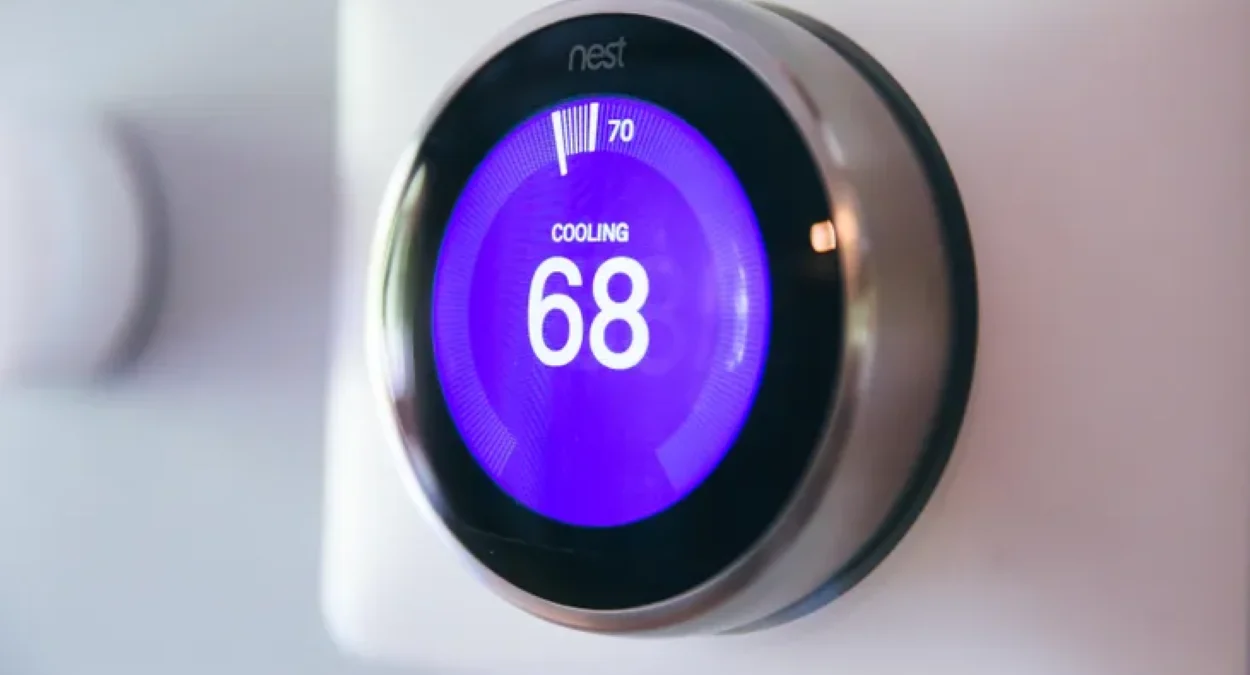
When your thermostat settings continue to change, or you can’t seem to keep a comfortable temperature, it can be very irritating. But there is a simple solution.
There are three kinds of Google Nest Thermostats, and the method you must use is determined by which one you have:
- Nest Smart Thermostat
- Nest Learning Thermostat
- Thermostat Nest E
The Nest Learning Thermostat is very costly because it senses the temperature you like. The Nest Thermostat E is less expensive, but it performs the same function.
Adjust the temperature through the Google Home app
To begin, open the Nest app on your phone or tablet. Select your Thermostat on the first screen.
Examine your thermostat to see if it is set to “Heat,” “Cold,” or “Heat • Cool.” If it’s not set to one of these options, this will not work. After that, choose “Hold Temperature.”
Set the temperature that you want it to stay at. Then you must specify when the temperature hold should expire.
It’s worth noting that in “Eco Mode,” you can choose “none,” and the Thermostat will maintain the selected temperature until you change it again.
You should be able to program your Nest Thermostat to maintain a constant temperature for up to 24 hours. When you press the start button, your temperature remains constant.


Adjust the Temperature through Your Nest Thermostat
It’s even easier to set a specific temperature on the Nest Thermostat.
To begin, go to your thermostat’s menu. View and select the “Hold” option. Then, to hold the temperature indefinitely, select “Eco Mode” or use the “Current Temp” settings to specify how long the hold should last. By clicking “Confirm,” you will turn on your hold.
In either case, if you want to change the temperature, you must first end the hold. It’s as simple as clicking the “Hold Temperature” icon, followed by “Stop.” Then you can change the temperature or set a new hold.
FAQs
Can I use Nest without a Google Account?
Answer: You can use the products’ basic features without creating an account. You must have a Google account to access features such as phone notifications, Nest app remote control, and home automation functions.
Is there a monthly fee for Nest?
Answer: For just $6 per month, you can get coverage for all of your Google Nest speakers, cameras, and displays and manage them all through the Google Home app.
Is it possible to hack my Nest camera?
Answer: Google Nest devices can be hacked. A hacker can gain access to your Google Home by controlling your WiFi router or by installing any dubious third-party software, among other methods.
Conclusion
- If you’ve been wondering how to keep Nest from entering the eco mode, you’re in luck.
Simply go to the Nest app’s Home/Away settings and disable the automatic switching. - After that, you’ll have to switch to eco mode manually whenever you need it.
- It’s also possible with Google Assistant or the Nest app.
- If you’re not sure whether turning off automatic switching to eco mode is a good idea, look at your energy bills to see if the feature is useful to you or not.