
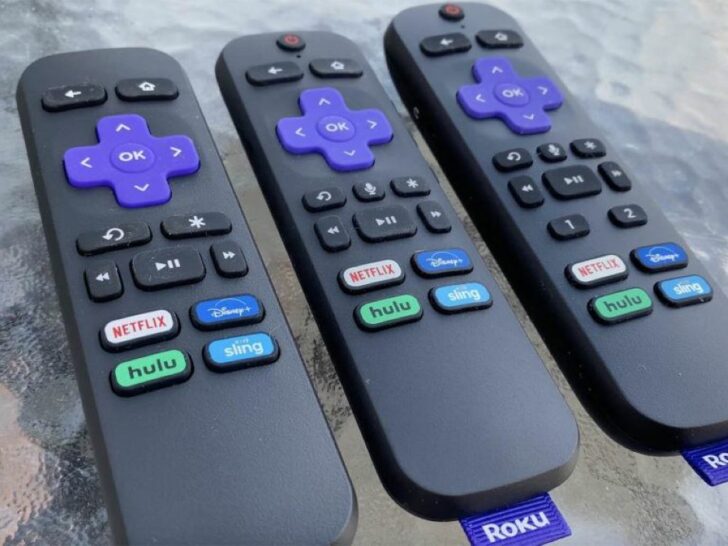
It can be incredibly frustrating when you’re trying to enjoy your favorite show or movie, and your Roku device suddenly freezes. This issue can be difficult to fix and might require a long-term solution.
Fixing the Roku Frozen Issue is a relatively simple step-by-step process. Remember to power cycle the device, check your HDMI cables, and reset your Roku if necessary.
In this blog post, we’ll provide you with all the information you need to fix the Roku frozen issue in a few simple steps.
TCL and Sharpoffer smart TVs that integrate Roku TV while Insignia and Toshiba offer Fire TV instead within their smart TVs
We’ll walk you through the troubleshooting process, so you can get back to your streaming as quickly as possible.
By continuing to use this website you agree to our Terms of Use. If you don't agree to our Terms, you are not allowed to continue using this website.
What Causes Roku Freezes?
Roku is a streaming device that’s designed to make it easy for users to watch their favorite movies and shows. Unfortunately, many owners experience freezing issues with their devices. So, what causes Roku freezes?
The most common cause of Roku freezing is the lack of regular updates.
| Software updates | Roku devices connect to the internet and require periodic software updates to function properly. If the device isn’t updated regularly, it can cause the device to become unstable and freeze up. |
| Interference | A potential cause of Roku freezing is interference from other devices using the same frequency. If other electronic devices in the house use the same frequency as Roku, this can cause interference and affect Roku’s performance. |
| Unstable internet connection | Another potential cause of Roku freezing may be an unstable internet connection. If the internet connection is weak or unstable, this can cause the device to become unstable and freeze up. |
| Hardware issues | Some users have experienced freezes due to hardware issues. If the device is malfunctioning due to a hardware issue, this can cause the device to freeze as well. |


Image Credit : Reddit
How to Fix a Frozen Roku?
A frozen Roku is a common problem that can be easily fixed. To fix a frozen Roku, the first step is to unplug and then re-plug the power cord into the Roku player. This will reset the device and often solve the issue.
If the issue persists, you should try rebooting the Roku device by going to Settings > System > System Restart. You may need a factory reset if the issue is still not fixed:
- Go to Settings, then click on System
- Select Advanced System Settings
- Click on factory reset to do this. This will reset your Roku device to its original state and should resolve the issue.
Regardless of your steps, ensuring that your Roku player is running the latest software version is important. This can be done by going to Settings > System > System Update.
It’s also good to check your internet connection to maintain stability. You can do this by running a speed test or checking your router‘s connection settings.
Troubleshooting Tips
When dealing with a frozen Roku device, it’s important to proactively troubleshoot the issue. Below are some useful tips for troubleshooting a frozen Roku device:
- First, try resetting your Roku. This can be done by unplugging the device from the power source and waiting at least 30 seconds before plugging it in again. This can often resolve minor issues.
- Secondly, check to see whether your internet connection is stable. If your internet is running slowly, it could be causing the Roku to freeze.
- If the reset and your internet connection are both working properly, try to restart the Roku by holding down the “Home” button on your remote for at least five seconds.
If the above steps don’t resolve the issue, you may need to perform a system update. Check your Roku’s firmware version and make sure it’s up to date. If not, you can manually update your Roku software.
If the issue is still unresolved, contact your Roku customer support service. They can provide further guidance and help you troubleshoot the problem.
Resetting Your Network Settings
Resetting your network settings is a quick and easy way to fix a frozen Roku issue. To start:
- Access your device’s settings menu.
- Navigate to the “System” settings and select “Network.” From there, you’ll be able to view the information about your network connection, such as your network name and Wi-Fi password.
- Select the “Reset Network Settings” option. This will reset your network connection and delete any stored information related to your connection, such as saved passwords or IP settings.
After resetting the settings, your Roku device will restart and automatically reconnect to your Wi-Fi network.

If you still have difficulty with your Roku after resetting the network settings, you may need to reset your Roku device to factory settings. This should be a last resort, as it’ll erase all your settings and data.
To do this, navigate to the “System” settings and select “Advanced System Settings.” From there, you can select the “Factory Reset” option. Once you choose this option, the device will reset and restart, and you should be able to connect to your Wi-Fi network again.
Checking Your Internet Connection
An unstable internet connection is one of the most common causes of a frozen Roku. Before you begin troubleshooting your Roku, it’s important to check your internet connection to ensure it’s strong and stable. Here is a step-by-step guide on how to prevent your internet connection:
- Ensure all cables are securely connected to your router and Roku. Check the port on your router’s back and ensure the Ethernet cable is securely plugged in. Additionally, check the ports on your Roku and ensure the HDMI cable is securely plugged in.
- Check the signal strength of your WiFi network. If your network is too weak, then it could be causing problems with your Roku. Move the router closer to your Roku to improve the signal.
- Check your internet speed. You can use a website such as speedtest.net to test your internet speed. Contact them to troubleshoot the issue if your speed is lower than your ISP promises.
- Make sure your router is up to date. It’s important to keep your router updated with the latest firmware. Contact your router manufacturer for instructions on how to update it.

Updating Your Software
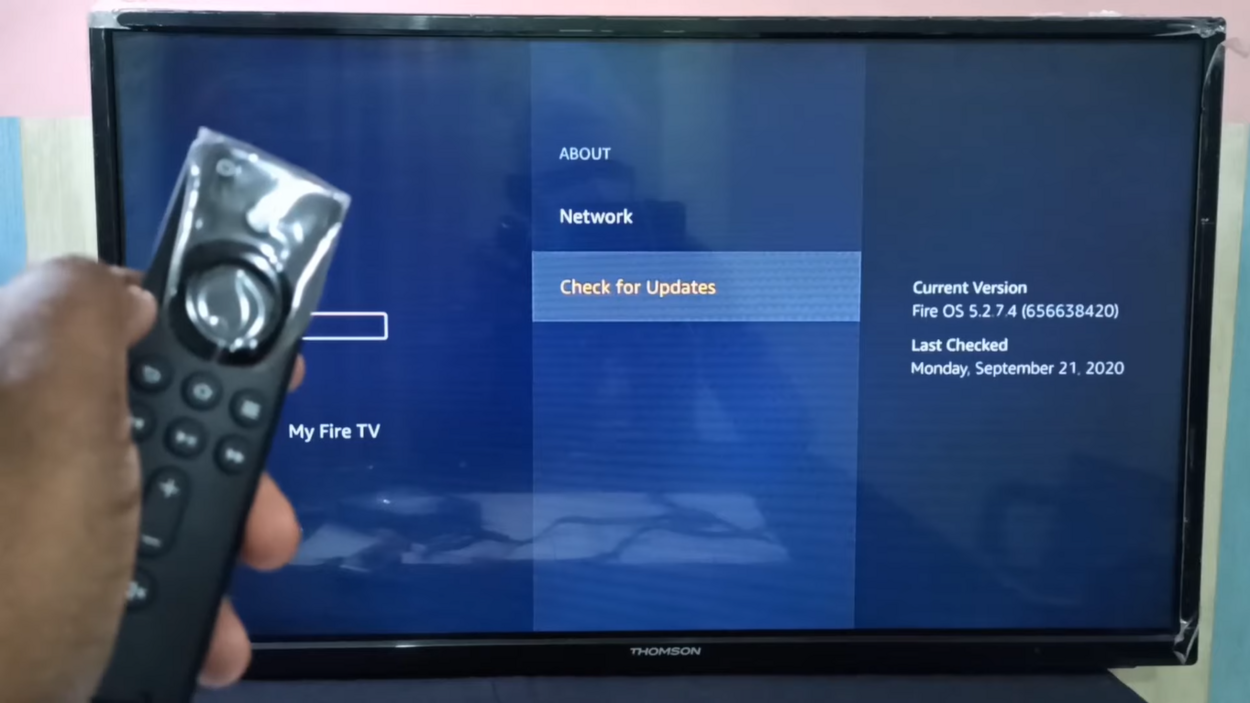
Updating your software is a great way to fix a frozen Roku issue. Keeping your software up to date is essential to ensure that your Roku runs efficiently and without problems. Fortunately, updating your software is easy.
First, turn on your Roku device and open up the home page. Scroll down to the Settings page and select “System Update.” This will bring up the most current version of your software.
If you don’t have the latest version, Roku will prompt you to download the latest software. Simply follow the onscreen instructions to download and install the new software.
Once the download is complete, restart the Roku device to apply the update. This will take a few minutes, so do not turn off the device until the update is complete. Once the update is completed, restart your Roku device to ensure that the issue is resolved.
Updating your software is a great first step toward resolving a Roku frozen issue. This simple process will keep your device running smoothly and without problems.
Contacting Roku Support
No matter how much troubleshooting you do, there may come a time when you need to contact Roku Support for help with a frozen Roku issue. Doing so is easy and can get you back to streaming your favorite shows and movies quickly.
The best way to contact Roku Support is through the official website at https://support.roku.com/. Here you can find answers to your questions via the search bar and a list of FAQs. You can also use the website to submit an inquiry and receive a response via email.
If you prefer to speak to someone on the phone, you can call the Roku Support line at 1-888-600-7658. When calling, you may be asked to provide your Roku serial number. This can be found in the Roku settings under the “System” menu.
Finally, if you’d prefer to contact Roku Support via social media, you can reach out on their Facebook and Twitter pages. You’ll likely find helpful tips from other Roku users and responses from the Roku team.
No matter which support option you choose, you can rest easy knowing that Roku Support can help you troubleshoot and fix your frozen Roku issue.
FAQs
What Causes Roku to Freeze?
Roku can freeze due to various issues, such as:
- A bad internet connection
- Outdated software
- A defective streaming device
How Do I Restart My Roku When it Freezes?
You can restart your Roku by unplugging it from the power source and plugging it back in. This will reset the device and allow it to boot up again.
If restarting your device doesn’t work, you may need to reset your Roku to factory settings. This will erase all data from your device and allow you to start fresh.
How Do I Update the Software on My Roku?
You can update the software on your Roku by navigating to the settings menu and selecting the System Update option.
This will allow you to access the latest version of the Roku software.
The Last say
- Fixing the Roku Frozen Issue is a relatively simple step-by-step process.
- Remember to power cycle the device, check your HDMI cables, and reset your Roku if necessary.
- You can get your Roku back up and running quickly with the right guidance.
- Try resetting your Roku, check to see whether your internet connection is stable and if it’s not working then try to restart the Roku by holding down the “Home” button on your remote for at least five seconds.
- If these steps don’t work, contacting Roku customer support can provide additional assistance.
- With patience and persistence, users can fix the frozen Roku issue and return to enjoying their streaming experience.
Other Articles
- How To Connect Alexa To a WiFWiFithout the Alexa App? (Here’s What You Need to Know!)
- Can a Sony TV Remote Be Replaced? (Find Out)
- LG TV Screensaver (Queries Resolved)
Click here to view the Visual Story Version of this Article.