
In today’s world, remote communication has become an essential part of our daily lives. Video conferencing has become a norm for both personal and professional purposes.
Zoom, one of the most popular video conferencing platforms, has gained tremendous popularity since the start of the pandemic.
With its user-friendly interface and excellent features, Zoom has become a go-to for people looking to communicate and connect with others online. But what about using Zoom on a Fire HD 10 tablet? In this article, we’ll explore the possibility of using Zoom on a Fire HD 10 tablet and what you need to know to get started.
By continuing to use this website you agree to our Terms of Use. If you don't agree to our Terms, you are not allowed to continue using this website.
Zoom Compatibility With Fire HD 10 Tablet
| Topic | Description |
| Operating system requirements | Zoom requires at least Android 5.0 to run on Fire HD 10 tablet |
| Hardware requirements | A device with a front-facing camera, a microphone, speakers, and a stable internet connection with a minimum bandwidth of 600kbps |
| Downloading the Zoom app | Zoom can be downloaded from the Amazon Appstore by searching for “Zoom” |
When it comes to using Zoom on a Fire HD 10 tablet, there are a few key factors to consider, including operating system requirements, hardware requirements, and app availability.
In this section, we’ll go over these factors in more detail to help you determine whether Zoom is compatible with your Fire HD 10 tablet:
- Operating system requirements: Zoom requires at least Android 5.0 to run on a Fire HD 10 tablet. This means that if your Fire HD 10 tablet is running an older version of Android, you will not be able to use Zoom. You can check the current version of Android on your Fire HD 10 tablet by going to Settings > System > About.
- Hardware requirements: Zoom also has certain hardware requirements to ensure a smooth and efficient experience. To use Zoom on a Fire HD 10 tablet, you’ll need a device with a front-facing camera, a microphone, and speakers. You’ll also need a stable internet connection with a minimum bandwidth of 600kbps for the best experience.
- Downloading the Zoom app: To use Zoom on a Fire HD 10 tablet, you’ll need to download the Zoom app from the Amazon Appstore. You can do this by searching for “Zoom” in the Appstore, and downloading and installing it on your Fire HD 10 tablet.
By ensuring that your Fire HD 10 tablet meets the operating system and hardware requirements for Zoom, you can ensure that you’ll be able to use the app without any issues.
Zoom on Fire HD 10 – no option to share sound when sharing screen??
byu/Villainiquity inkindlefire
Keep in mind that even if your tablet meets the requirements, there can be other factors that can affect the performance of the app, such as your internet connection.
Setting up Zoom on Fire HD 10 Tablet


If you’re looking to set up Zoom on your Fire HD 10 tablet, the good news is that it’s a relatively straightforward process. Here’s what you need to do:
- First, make sure your Fire HD 10 tablet is up to date with the latest software. To check for updates, go to Settings > Device Options > System Updates.
- Next, go to the Amazon Appstore and search for the Zoom app. Once you’ve found it, download and install the app on your tablet.
- Open the Zoom app and sign in to your account. If you don’t have an account yet, you can create one from within the app.
- Once you’re signed in, you’ll have access to all of the features of Zoom, including the ability to join and host meetings.
- To join a meeting, simply click on the link provided by the host or enter the Meeting ID and password if applicable.
- To host a meeting, click on the “New Meeting” button and choose your settings, such as whether to enable video and audio.
- You can also customize your Zoom settings by going to the app’s settings menu, accessible by tapping on the three lines in the upper left-hand corner of the app.
With these steps, you’ll be able to use Zoom on your Fire HD 10 tablet and enjoy all the benefits of video conferencing on a larger screen.
Using Zoom on Fire HD 10 Tablet

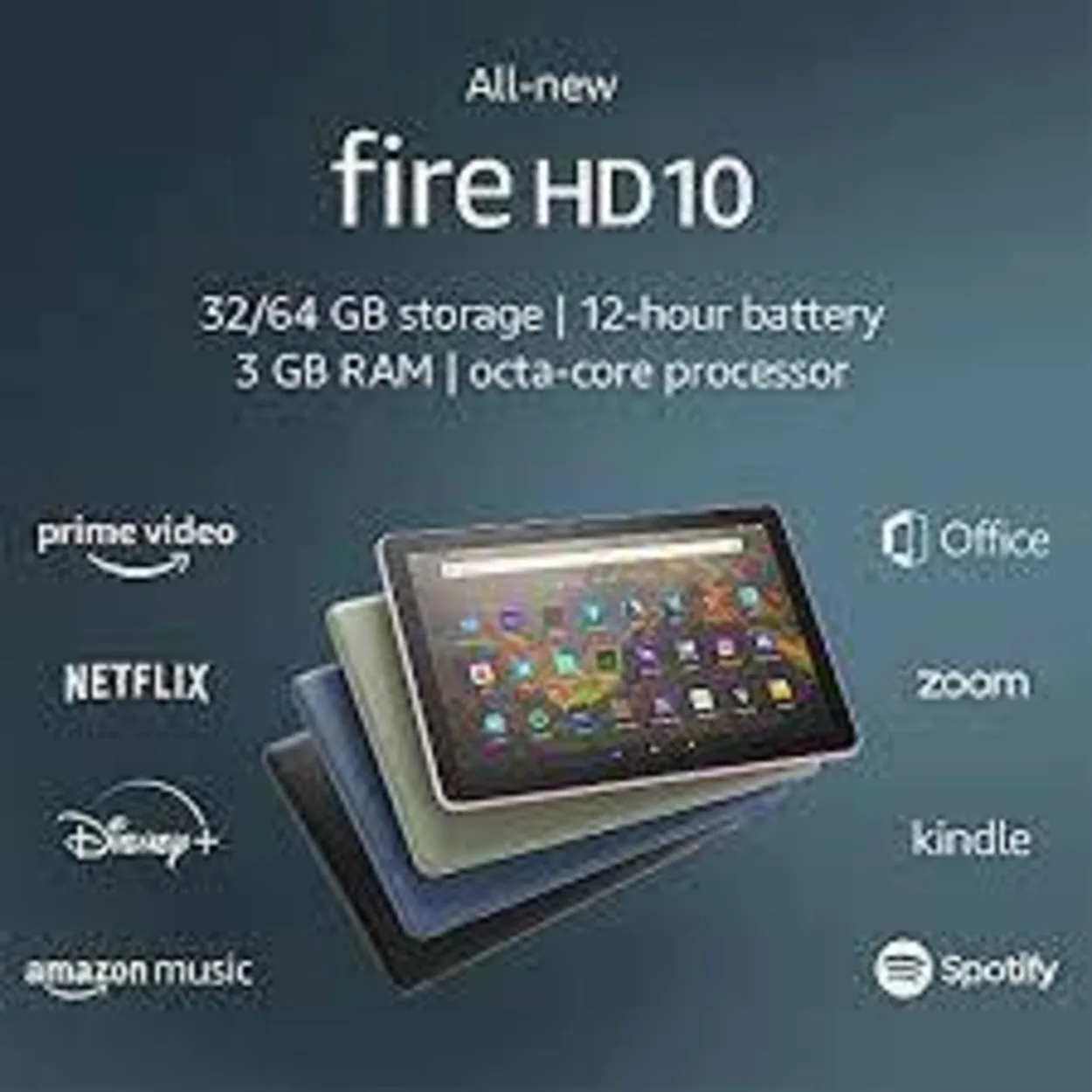
To use Zoom on your Fire HD 10 tablet, follow these steps:
- Download the Zoom app from the Amazon Appstore: The first step is to download the Zoom app from the Amazon Appstore. To do this, open the Appstore app on your Fire HD 10 tablet, search for “Zoom,” and select the app from the search results. Then, click on “Download” to start the installation process.
- Sign in or create an account: Once the Zoom app is installed, open it and sign in with your Zoom account credentials. If you don’t have an account yet, you can create one directly within the app.
- Join or start a meeting: After signing in, you can either join an existing meeting by entering the meeting ID or start a new meeting yourself. If you’re joining a meeting, make sure to enter the ID correctly to avoid any issues.
- Adjust your settings: Once you’re in a meeting, you can adjust your audio and video settings as needed. You can also access additional features such as screen sharing or recording by tapping the corresponding icons on the bottom toolbar.
Two developed methods of acquisition are presented; one requiring a special cable to reflash the boot partition of the device with a forensic acquisition environment (Method A), and the other exploiting a vulnerability in the device’s Android operating system (Method B).
Overall, using Zoom on your Fire HD 10 tablet is a straightforward process that only requires a few simple steps. With the app installed, you can easily join or host meetings on the go, making it a great tool for remote work, virtual events, and more.
Troubleshooting Zoom on Fire HD 10 Tablet


If you encounter any issues while using Zoom on your Fire HD 10 tablet, there are a few troubleshooting steps you can take to resolve the problem:
- Check your internet connection: Ensure that your Fire HD 10 tablet is connected to a stable and fast internet connection. Poor connectivity can cause lags or disconnections during a Zoom call.
- Check for updates: Ensure that you have the latest version of Zoom installed on your Fire HD 10 tablet. Go to the Amazon Appstore, and check for updates for the Zoom app.
- Restart your tablet: Try restarting your Fire HD 10 tablet to see if that resolves the issue. Press and hold the power button for a few seconds, and then tap on “Restart”.
- Clear app cache: Sometimes, clearing the cache of the Zoom app can help resolve issues. Go to Settings > Apps & Games > Manage All Applications > Zoom > Storage > Clear Cache.
- Reinstall Zoom: If none of the above steps work, try uninstalling and reinstalling the Zoom app on your Fire HD 10 tablet.
If you continue to have issues with Zoom on your Fire HD 10 tablet, you can contact Amazon customer support for further assistance.
FAQs
Can I use Zoom on a Fire HD 10 tablet?
Yes, you can use Zoom on a Fire HD 10 tablet as long as it meets the operating system and hardware requirements.
Will my video quality be affected when using Zoom on Fire HD 10 tablet?
Video quality can be affected by several factors, such as internet connection, device performance, and settings. Always make sure to test audio and video before joining any meeting to ensure a smooth experience.
Can I record my Zoom meetings on Fire HD 10 tablet?
Yes, Zoom allows you to record meetings on Fire HD 10 tablet. You can access the recording feature by tapping the “More” button during a meeting and selecting “Record.”
Conclusion
- In this blog post, we’ve discussed the compatibility of Zoom with Fire HD 10 tablet, the steps for setting up and using Zoom, troubleshooting tips, and alternatives.
- Zoom is a powerful and easy-to-use video conferencing app that can help you stay connected with colleagues, friends, and family.
- By understanding the features and limitations of using Zoom on a Fire HD 10 tablet, you’ll be able to get the most out of the app.
- It’s important to note that using Zoom on a Fire HD 10 tablet can be affected by several factors, such as internet connection, device performance, and app version.
- Always make sure to check the user manual and support page for more information.